What AI tools can generate images from an Excel or CSV file?
Turn Excel or CSV prompts into AI images. Compare tools, download a working sample, and batch-generate separate images with BulkIMG Flow.
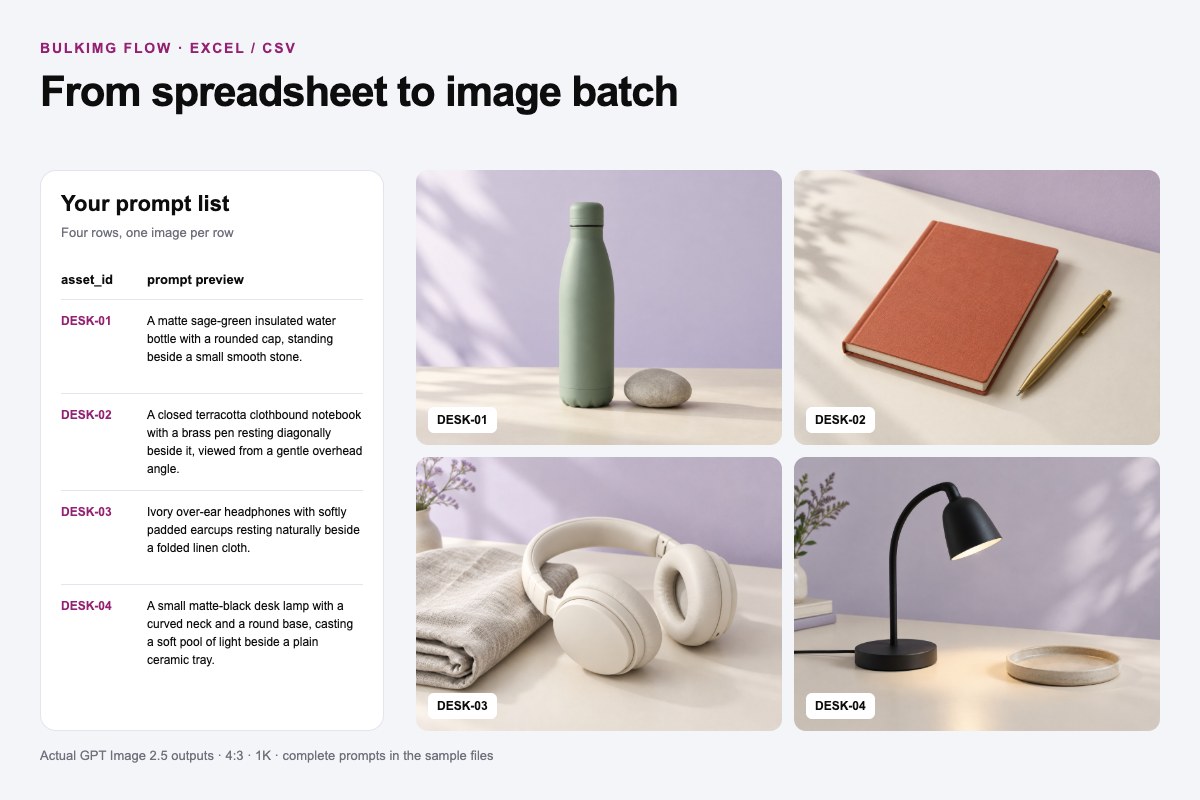
Yes. BulkIMG Flow can generate separate AI images from an Excel .xlsx or CSV prompt list. Import the file, review the task rows, choose a model, and confirm the batch. With Images per row set to 1, each valid prompt gets its own image.
Other documented options include Batch Banana, sangtao.ai, and a CSV workflow through FLORA's MCP connection. The useful question is which one fits how you already work: uploading a finished file, working inside a batch table, or running an automation through an AI coding agent.
If your content calendar is already in a spreadsheet, I'd start with the file-upload route. You can keep planning in Excel and use the image workspace when the prompts are ready.
The sample below contains the exact prompts used for the four GPT Image 2.5 images in this guide. Import it, leave Images per row at 1, and review the batch before generating.
Open the image workspaceDownload the Excel sample or CSV sample. Both contain the same four prompts.
Which tools actually accept a spreadsheet prompt list?
The table below compares the documented input workflows, checked on November 18, 2026. It is a guide to getting a file into a tool, rather than an image-quality ranking.
| Tool | Documented input | Workflow to check |
|---|---|---|
| BulkIMG Flow | Excel .xlsx or CSV | Import prompt rows into the browser workspace |
| Batch Banana | CSV or TSV | Import into its batch table; its docs list a Max-plan requirement |
| sangtao.ai | Excel .xlsx or CSV | Upload, map columns, and export image links to Excel |
| FLORA | CSV through its documented MCP workflow | Connect an AI coding agent and turn row fields into prompts |
Batch Banana's batch documentation describes CSV/TSV import and per-row settings. sangtao.ai's Excel/CSV guide documents column mapping and Excel exports with image links; it also notes that the signed-in bulk steps are currently shown in Vietnamese. FLORA's spreadsheet guide walks through a CSV-to-image workflow using an AI coding agent and its MCP connection.
For this walkthrough, we'll use BulkIMG Flow's browser importer. You can inspect and edit the imported prompts before any image generation starts, without setting up an API connection yourself.
The spreadsheet problem people are trying to solve
Usually, the prompts already exist. The slow part is moving them into a generator, submitting them separately, and figuring out which download belongs to which row.
In one discussion about spreadsheet prompts, a learner wanted a separate illustration for each vocabulary prompt, with a consistent style. In another discussion about an Excel prompt list, the questions were about daily volume, time, and whether every prompt had to be entered individually.
Those are practical concerns. A useful workflow should let you check three things before spending credits: the imported text, the number of images, and the estimated cost. It should also let you keep the good results when a few rows need another attempt.
Start with a small sheet you can check at a glance
For the example here, imagine you're preparing a small set of desk-accessory images: a water bottle, a notebook, headphones, and a lamp. Each gets its own prompt, while the light, backdrop, and framing stay similar.
The downloadable files have three columns:
asset_idis an organizing label for your original sheet.channelrecords where you intend to use the image.promptcontains the complete instruction sent to the image model.
Only prompt is imported into the tasks. The first two columns help you organize the source file; they do not rename downloaded images or change generation settings.
One of the complete prompts looks like this:
A matte sage-green insulated water bottle with a rounded cap, standing beside a small smooth stone. Editorial product photograph on a pale cream desk with a soft lilac backdrop, natural side light, realistic materials, clean composition, no text, no logos. Landscape 4:3.
Notice that the visual direction is inside the prompt cell. If every image needs the same lighting or backdrop, include that direction in every row. A column called style will not automatically be added to the prompt by this importer.
Keep the prompt header in the first nonempty row, and put the data on the first worksheet of an Excel file. Avoid a decorative title row above the headers. If your prompts are built with spreadsheet formulas, copy and paste them as values into the final import sheet.
For CSV, use a comma-separated UTF-8 export. Excel will normally quote cells containing commas or line breaks for you. That matters here: commas inside a quoted prompt belong to the same cell.
Import the file and turn the rows into images
1. Open Generate from Prompts
Go to Generate from Prompts and choose Import Excel/CSV. Select the sample .xlsx or .csv file.
Importing adds rows to the current project. If you already have tasks there, review them too, or open a fresh batch before importing. Importing the same file twice adds another set of rows.
You can prepare the sheet and inspect the workspace before signing in. Importing alone does not generate or charge for images.
2. Check the imported text before the settings
Look through the prompt cells. You should see the descriptions of the bottle, notebook, headphones, and lamp, rather than the DESK-01 labels.
The importer looks for a header named prompt, ignoring capitalization and surrounding spaces. When that header is absent, it reads the first column. That's useful for a plain one-column list, but it can pick up the wrong content from a larger planning sheet. Naming the column prompt removes that ambiguity.
If an import reports invalid row numbers, fix those rows and import again. Completely empty rows are skipped. A row with other content but no usable prompt is invalid; the importer asks you to fix it before adding the file's tasks.
3. Set one image per row
For the four examples below, use GPT Image 2.5, 4:3, 1K, and Images per row ×1. No reference images are used.
Four prompt rows at ×1 means four images. At ×4, the same sheet requests sixteen images. This setting is easy to overlook when you return to a workspace with settings from an earlier batch.
The current file importer reads prompt text only. Set the model, resolution, and image count in the workspace. You can change individual aspect ratios in the task table. Upload reference images through the image controls rather than adding local file paths or image URLs to the spreadsheet.
4. Review the total and confirm
Sign in when prompted, then use Generate and review the batch confirmation before starting.
At the product rates checked on November 20, 2026, these four short, text-only GPT Image 2.5 prompts estimate 28 credits at 1K, 48 at 2K, or 64 at 4K, with one image per row. Longer prompts or additional reference images can change the estimate. Use the total shown in the workspace for your actual batch, and check the current credit packages if you need more credits.
The queue processes up to 15 images concurrently. A larger file can be submitted as a batch, with the remaining images waiting their turn. There is no fixed completion time for every model or resolution.
Four prompt rows, four separate results
These images were generated through the GPT Image 2.5 API, using the exact prompts in the downloadable files at 4:3, 1K, without reference images. The cover arranges the four outputs together so you can see the set; each output is a separate image.




The repeated backdrop and lighting help these images read as a set, while each row changes the subject. They are concept images of fictional, unbranded products. If you need to preserve a real product's shape or packaging, start with its photo in Bulk Edit Photos, or use a shared reference in Create Image Variations.
What I'd check when a spreadsheet batch goes wrong
The wrong text appears in the task cells. Check the header first. A column named image_prompt, description, or instructions is not the same as prompt in the current BulkIMG Flow importer. Use the exact header, with no title line above it.
Only some of the workbook is appearing. Put the import table on the first worksheet. For a larger project, split the source into files no larger than 10 MB, and keep each project's total at 200 task rows or fewer, including existing rows.
The accents or punctuation look wrong. Re-export as CSV UTF-8, or use the .xlsx version. If your spreadsheet app exports semicolon-separated text for your region, choose a comma-separated CSV export or use Excel format.
There are more images than expected. Check Images per row, existing tasks, and whether the file was imported twice. The batch total should match the work you intend to run.
A few images need another attempt. Review their prompts and use the row's generation control. A fresh regeneration is another generation request, so check its estimate. You can keep completed results and download them while dealing with the remaining tasks.
You want to stop the batch. Use Cancel generation and confirm the notice. Only images that have not been submitted are canceled, at no charge. Images already submitted, including those queued or processing at the model provider, finish normally and use credits. Their results stay available; failed images are refunded. Keep the workspace open while its queue is running, because the browser manages submitting the remaining images.
Download the images with a way to find each row
Use Download completed (ZIP) to collect the finished images. The ZIP also includes prompts.csv, with task numbers, filenames, and the prompts used for the exported images.
Your original Excel file stays unchanged. The importer does not carry asset_id or channel into the tasks, and it does not write image URLs back into the workbook. Keep your source sheet if you need those fields. For a simple first batch, keeping the row order and the exported prompt list is an easy way to match the results.
Guest drafts stay in the browser where they were created. Signed-in projects, prompts, and settings sync across devices. Reference and generated images are available for 30 days. Download any images you want to keep. If you're planning a much longer prompt list, the guide to generating 100 different images covers queue behavior and organizing larger runs.
A few questions before you upload
Can I generate AI images directly from an Excel file?
Yes. BulkIMG Flow accepts Excel .xlsx files and reads the first worksheet. Put complete image descriptions in a column named prompt in the first nonempty row. You can also import a comma-separated CSV file. Save older .xls files as .xlsx first.
Does each CSV row create a separate image?
Each valid prompt row becomes a separate task. Set Images per row to 1 for one image per prompt. A higher image count produces several images for each task, so check the total before confirming the batch.
Can spreadsheet columns set the model, ratio, or reference images?
The current BulkIMG Flow file importer reads prompt text only. Set the model, resolution and image count in the workspace, adjust aspect ratios in the table, and upload reference images through the interface. Extra columns such as model, asset_id or image_url are not applied as generation settings.
Can I use a Google Sheets prompt list?
Yes. Download the relevant sheet as a CSV or the workbook as an Excel .xlsx file, then import that file. This is a file import, so changes made later in Google Sheets do not automatically update your batch.
How many prompt rows can I import?
BulkIMG Flow supports up to 200 task rows in a project, including rows already there. Each CSV or .xlsx import file must be no larger than 10 MB. Split a larger list into separate batches and fix any invalid rows reported during import.
Do I need an API key or coding skills?
No. You can open the workspace and import a file in your browser without bringing an API key. Preparing the batch does not start generation. You need to sign in and have enough platform credits when you generate.
Will the generated images be written back into my Excel file?
No. BulkIMG Flow leaves your original workbook unchanged. Download the completed images as a ZIP, which also includes prompts.csv with task numbers, image filenames and prompts. Extra source columns such as asset_id are not carried into the imported tasks, so keep your original sheet for business IDs.
Give the four-row file a try
Start with the Excel sample or CSV sample, check the imported prompts, and generate a small set before expanding your list. That first run tells you far more about the right model and wording for your project than sending your entire content calendar at once.
Import the sample or your own spreadsheet, review the rows, and set Images per row to 1. You'll see the estimated credits before confirming the batch.
Import Excel or CSV