AI Batch Photo Editor
Edit multiple photos at once with a single instruction.
Upload multiple images
Use one instruction for the batch. You can customize it for any photo in the workspace.
One instruction, separate photo edits
Apply one edit to the batch or write a separate instruction for a photo.
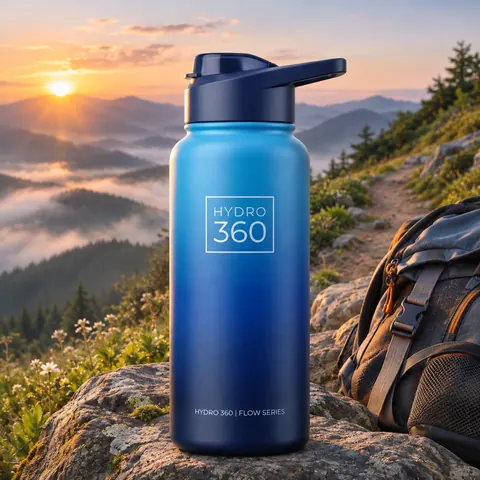
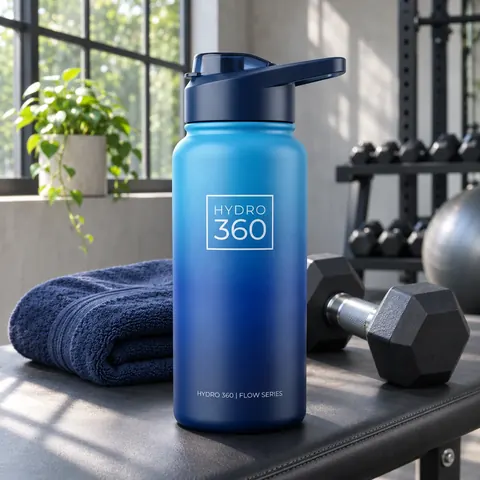
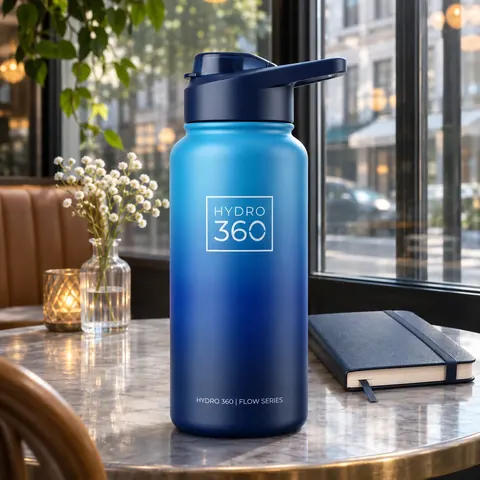
4 original photos
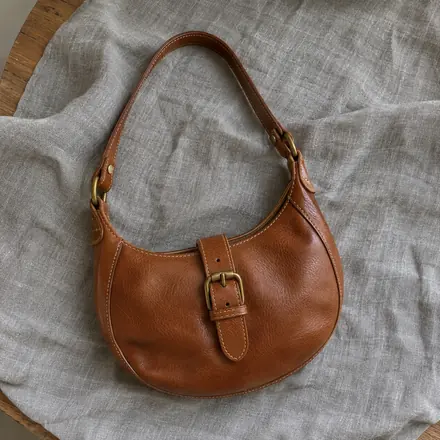
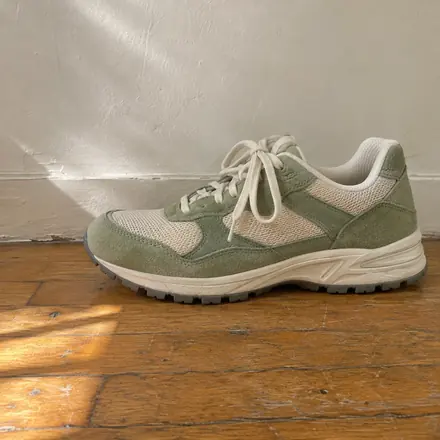
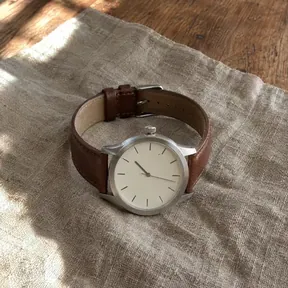
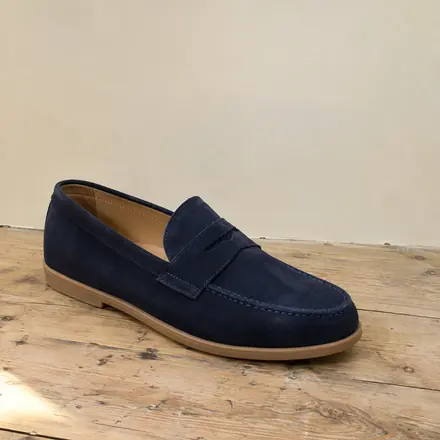
One shared edit
Use a pure-white background and keep each product centered.
Edited results
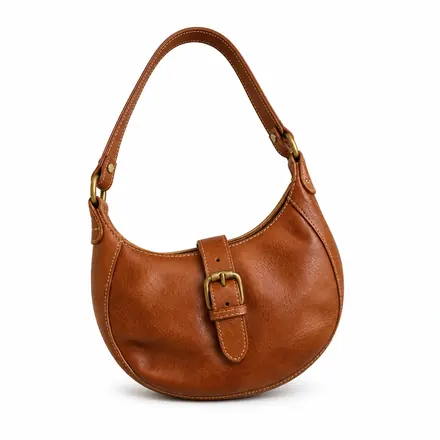
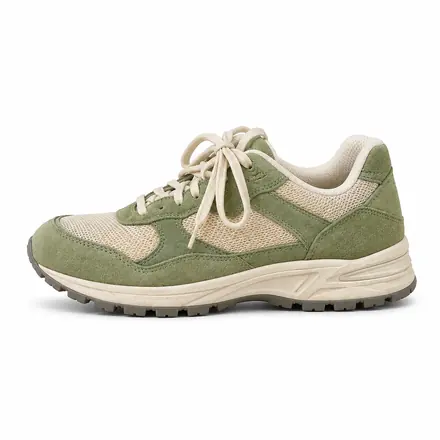
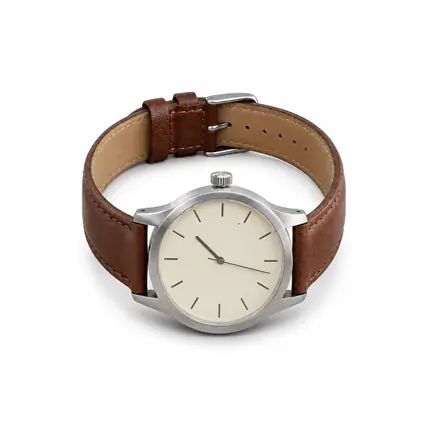
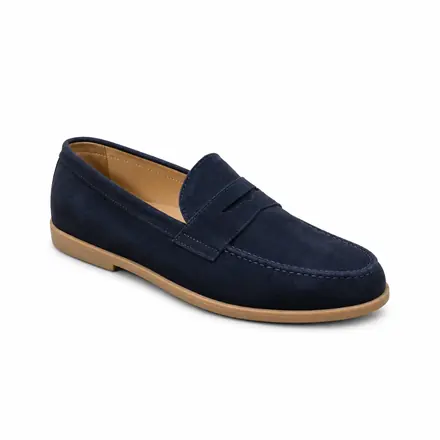
Batch photo editing examples
Select a photo to see the before and after.
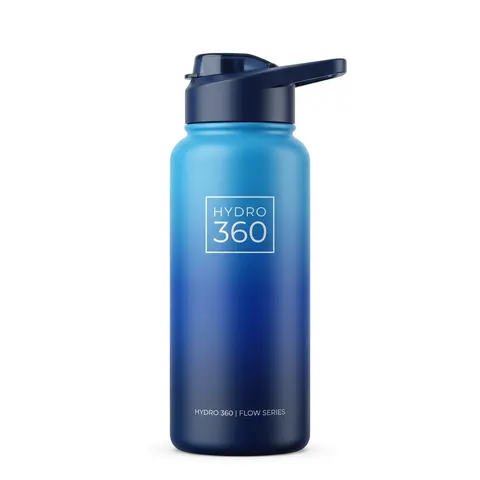
Standardize product photos
Turn different product shots into a consistent white-background collection, with centered subjects and balanced margins.
GPT Image 2.5 · 1:1 · 4 tasks · 1 per photo
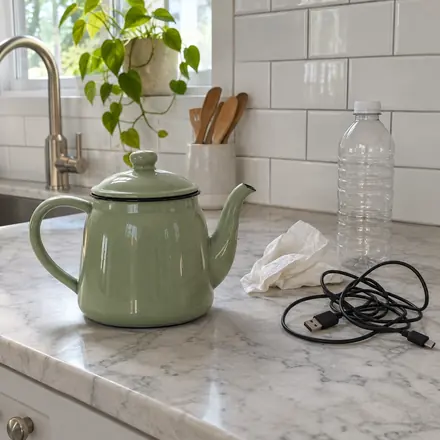
Remove clutter and distractions
Clear away loose paper, bottles and cables while retaining the main subject and the room around it.
GPT Image 2.5 · 1:1 · 4 tasks · 1 per photo
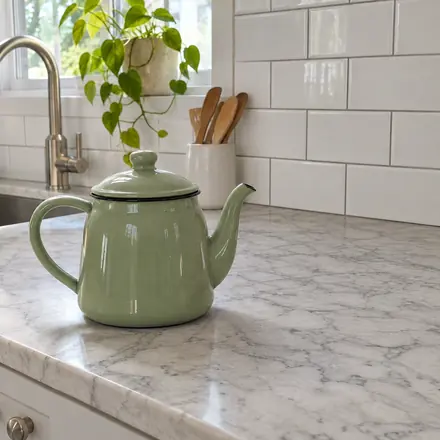
Adapt photos for social feeds
Reframe a landscape photo batch for a 4:5 feed. Choose a different output ratio in the workspace for another batch.
GPT Image 2.5 · 4:5 · 4 tasks · 1 per photo
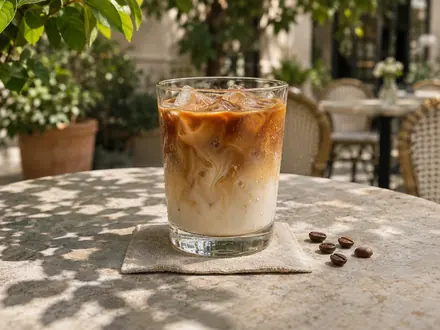
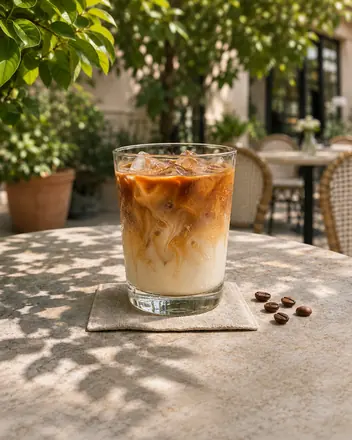
Explore more batch editing examples
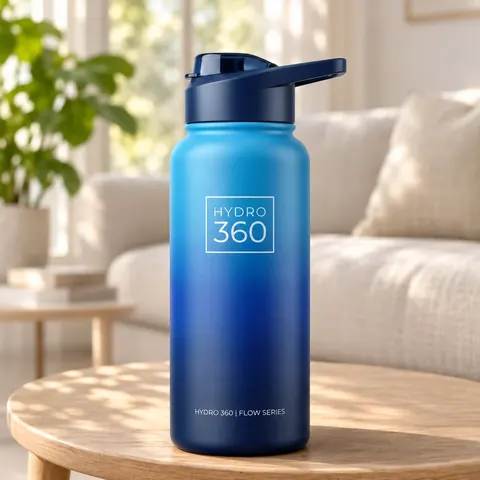
Replace backgrounds in a batch
Give photos taken in different settings the same soft sand-colored studio background.
GPT Image 2.5 · 1:1 · 4 tasks · 1 per photo
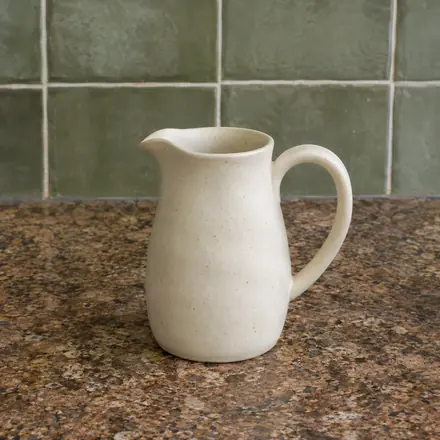
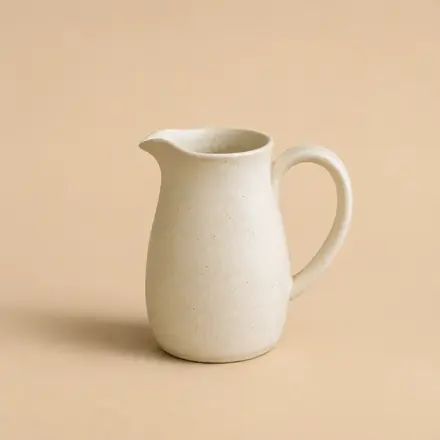
Reframe photos for product listings
Adapt tightly framed landscape photos to a square layout, keeping each product fully visible with room around it.
GPT Image 2.5 · 1:1 · 4 tasks · 1 per photo
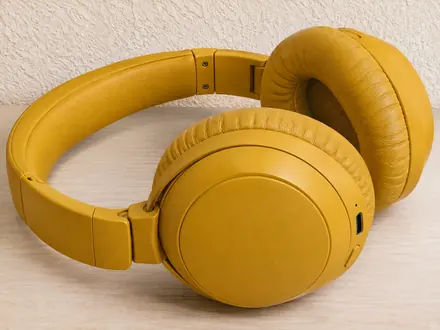
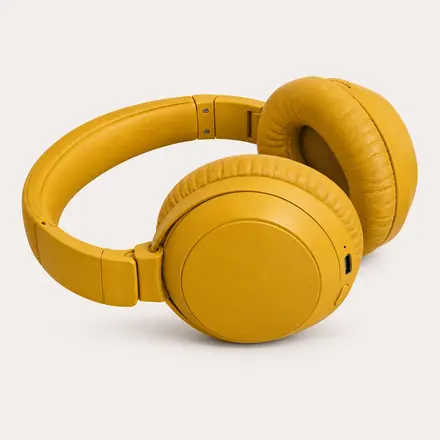
Match color and exposure
Bring differently lit photos closer to neutral daylight while keeping the original scene and composition.
Generative color and exposure edits can also change small visual details. Check each result before use.
GPT Image 2.5 · 1:1 · 4 tasks · 1 per photo
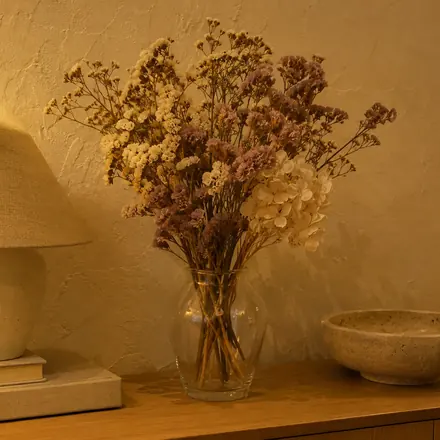
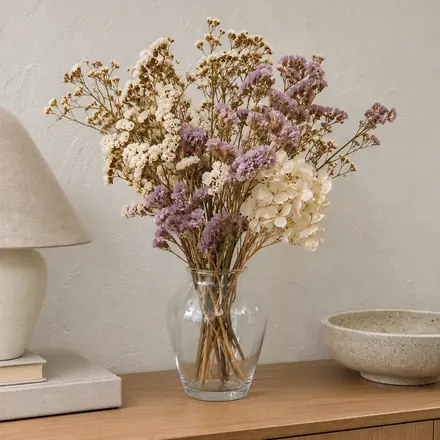
Reduce noise and improve clarity
Clean up visible grain and gently clarify edges while retaining natural textures and small imperfections.
Compare grain, edges and texture in the before and after photos.
GPT Image 2.5 · 1:1 · 4 tasks · 1 per photo
Batch editing settings
- Shared edits and individual adjustments
- Use a shared instruction. Add a separate one to override it for a photo.
- Model, aspect ratio and output count
- Set the model, aspect ratio, and number of results per photo.
- Credits, retries and download
- Review each photo, retry individual edits, and download the batch.
Frequently asked questions
Can I use different instructions for individual photos?
Give the photo its own task prompt in the workspace to override the shared edit.
How many images can I edit in one batch?
A batch supports up to 200 tasks. You may upload up to 200 photos at once, up to 100 MB in total and 10 MB per file. Each task can produce up to 10 results.
Can I edit multiple photos with one prompt?
Upload your photos and enter one edit, such as switching to a white background. Each photo produces its own results.
Will AI preserve the original product details?
A clear instruction and reference photo help preserve the product. Generative edits can still change shape, texture, lettering, logos or accessories. Compare each result with the source before publishing or using it in a listing.
Which image formats can I upload?
You can upload JPG, PNG and WebP photos directly from your device.
How much does batch photo editing cost?
Credits are estimated per output based on the model and settings. Resolution, reference images and prompt length may affect the estimate. Review the batch total before you start generating.
What happens if one image fails?
You can keep the completed results and retry the failed task on its own. Credits reserved for failed images are returned automatically.
Can I download all edited images together?
Save images individually or download a ZIP with prompts.csv to match each result to its instructions.