AI Product Image Generator for Ecommerce
Turn your product photos into catalog shots, lifestyle images, and ads.
Two ways to make product photos
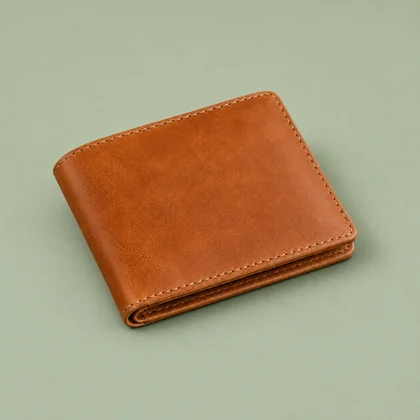
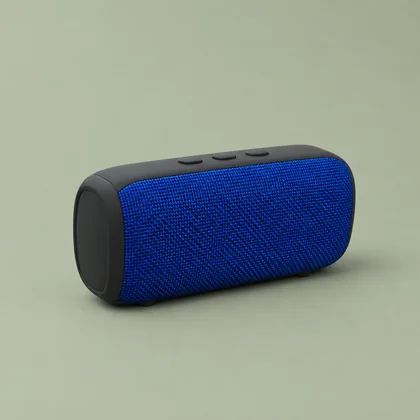
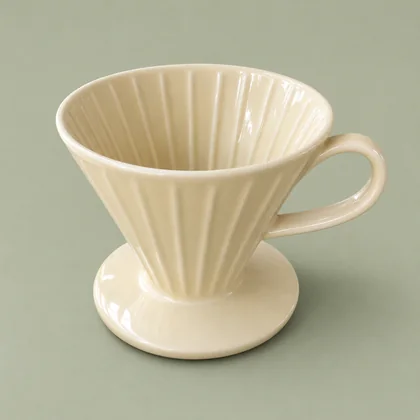
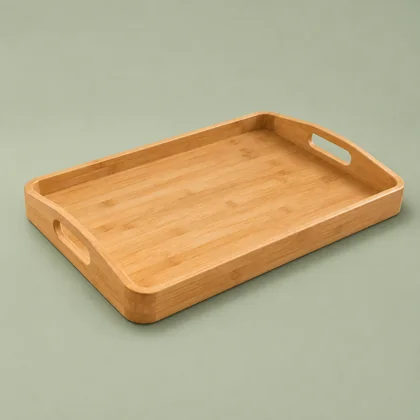
Apply one edit to six product photos for a consistent sage-green studio background.
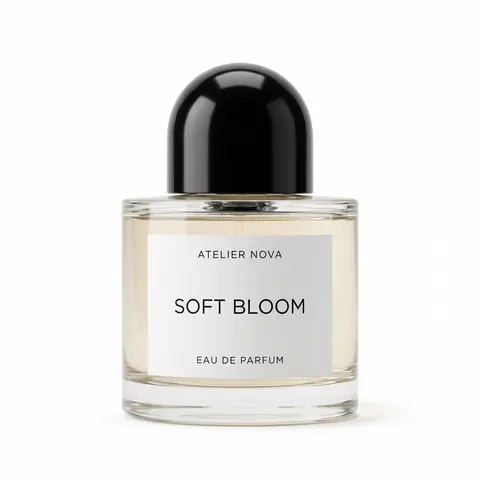
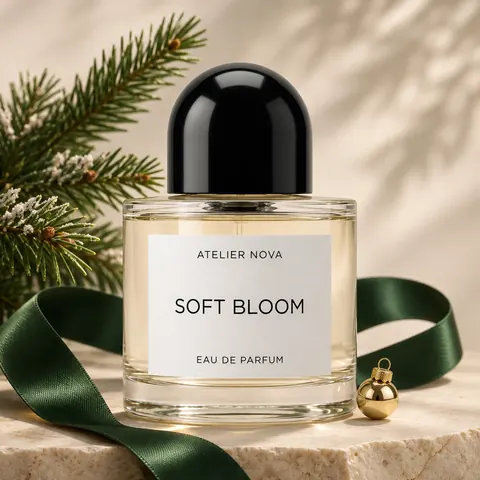
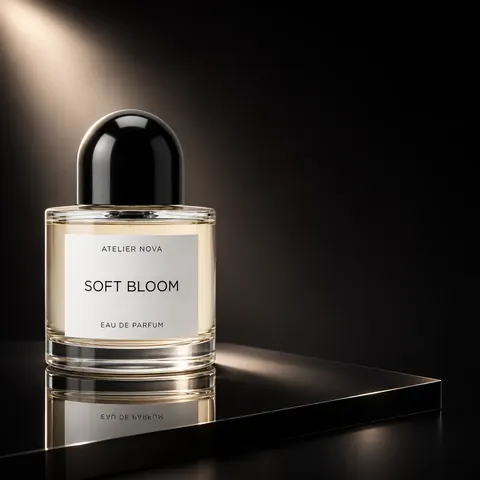
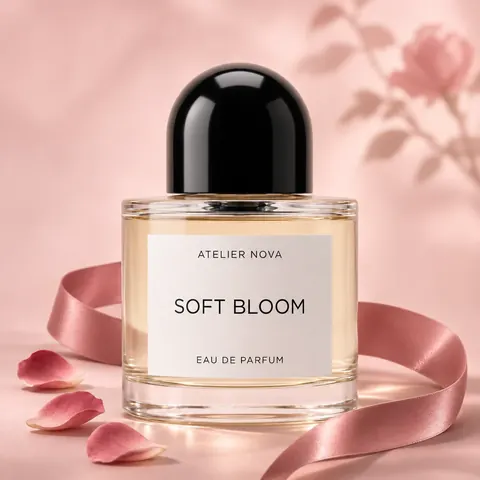
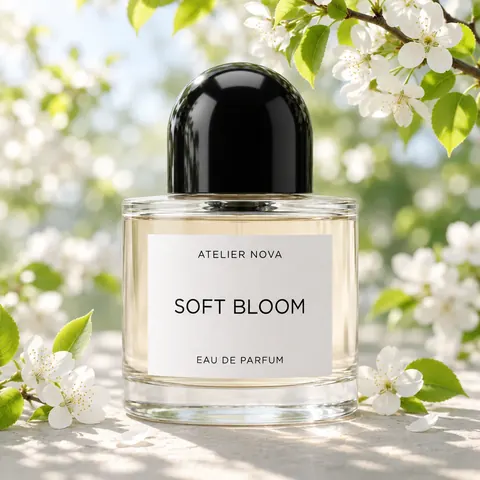
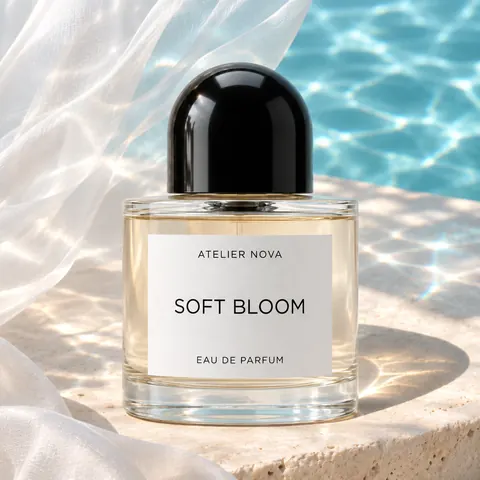
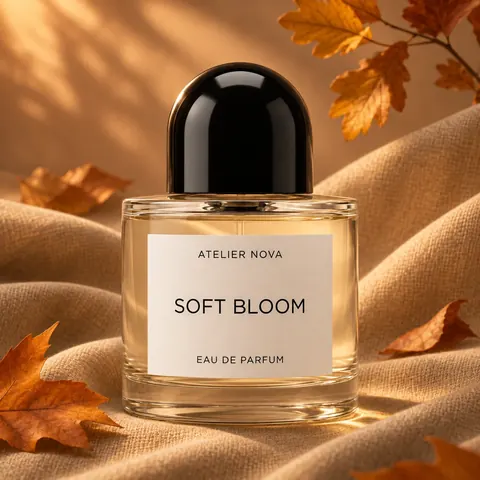
Start with one perfume photo and use six prompts to create six seasonal campaign images.
Product photography examples
Product listing & standardization
Bulk white background
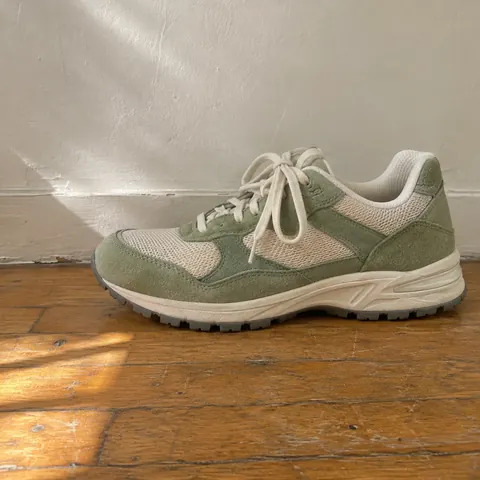
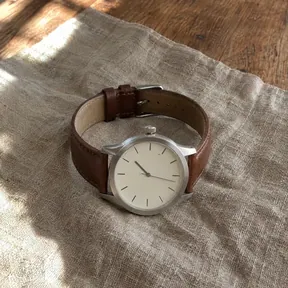
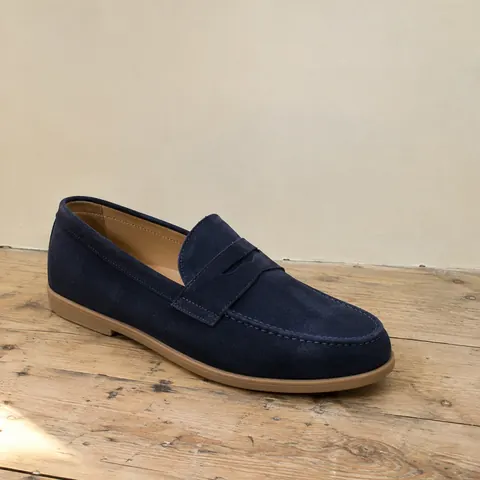
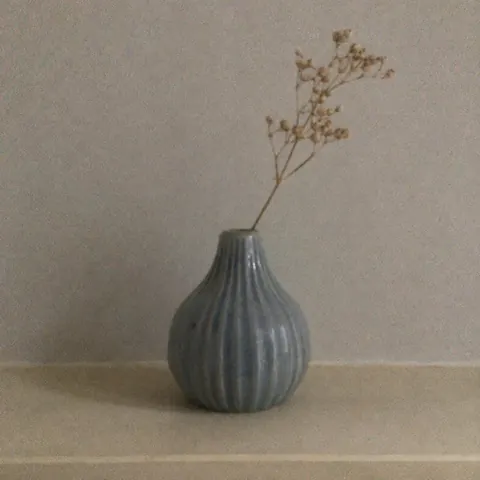
Apply the same instruction to six different product photos to give them clean white backgrounds, even margins and natural shadows.
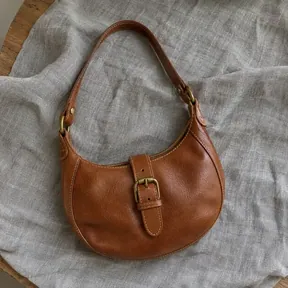
- 01Leather shoulder bag
- 02Sage mesh sneaker
- 03Leather-strap watch
- 04Navy suede loafer
- 05Ribbed ceramic vase
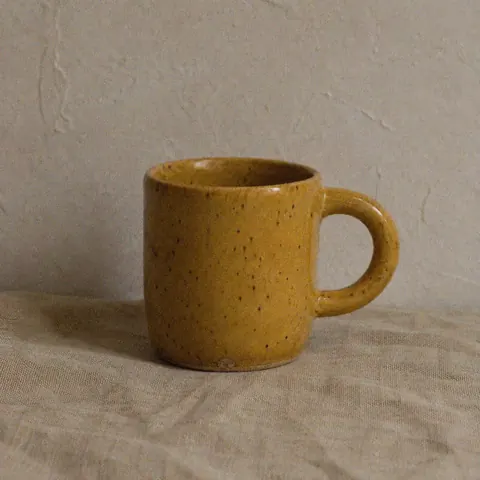
- 06Mustard ceramic mug
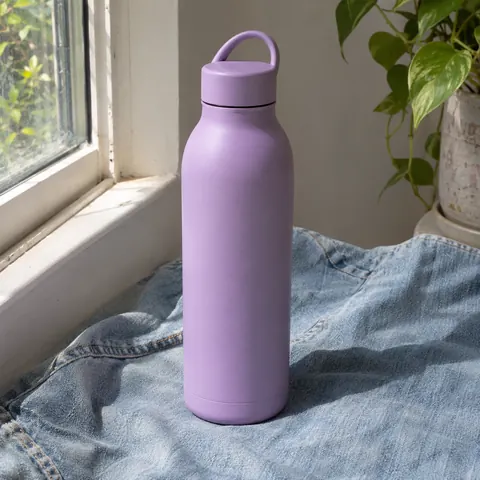
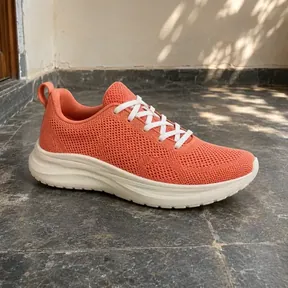
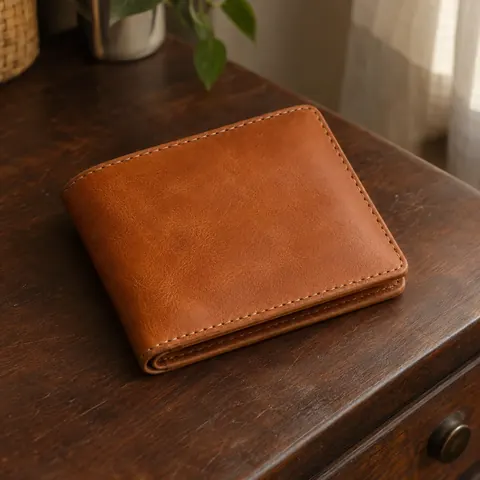
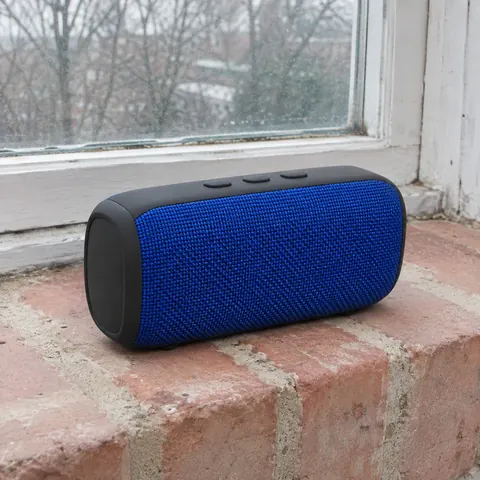
Bulk background replacement
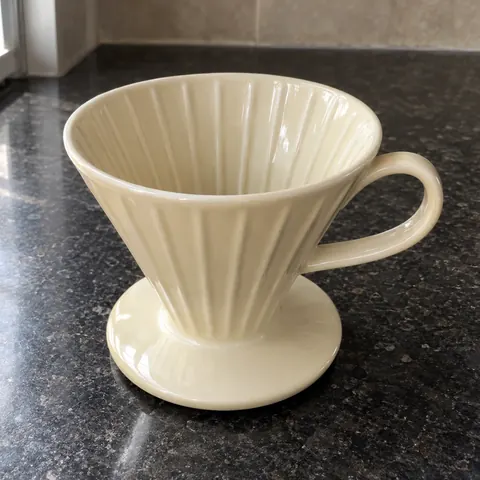
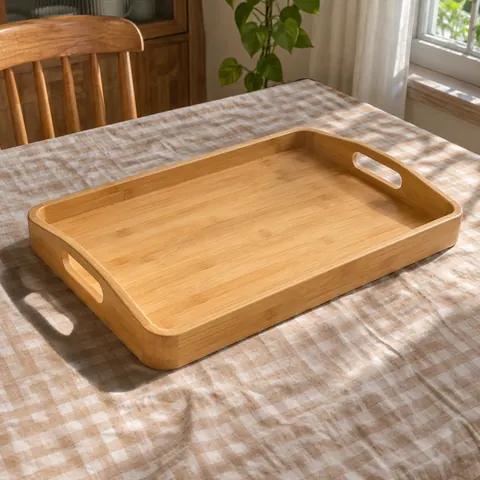
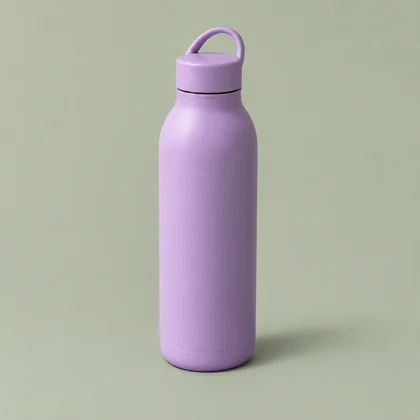
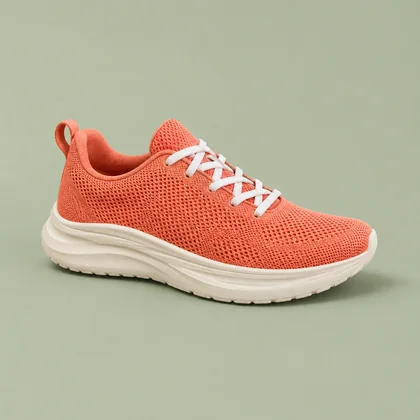
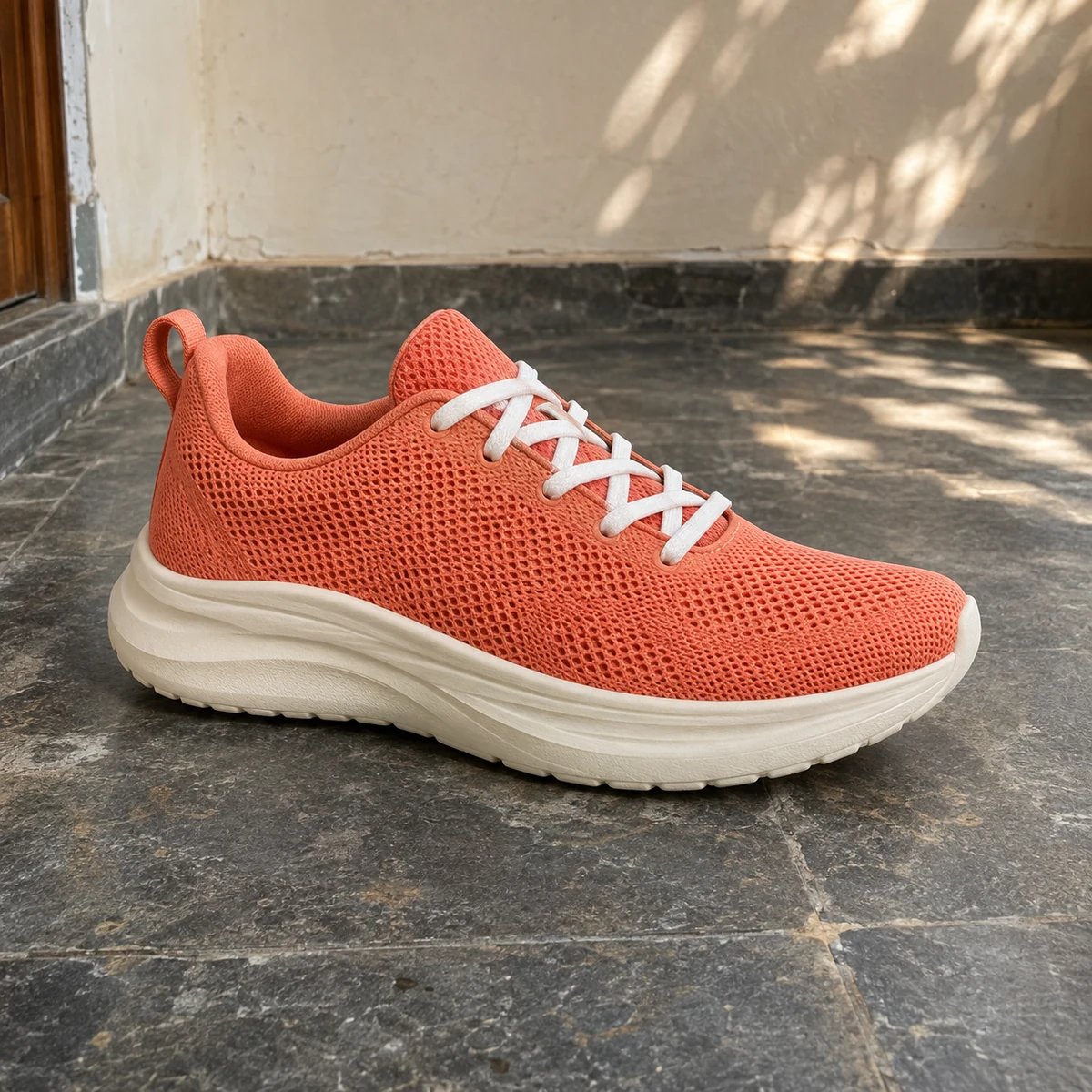
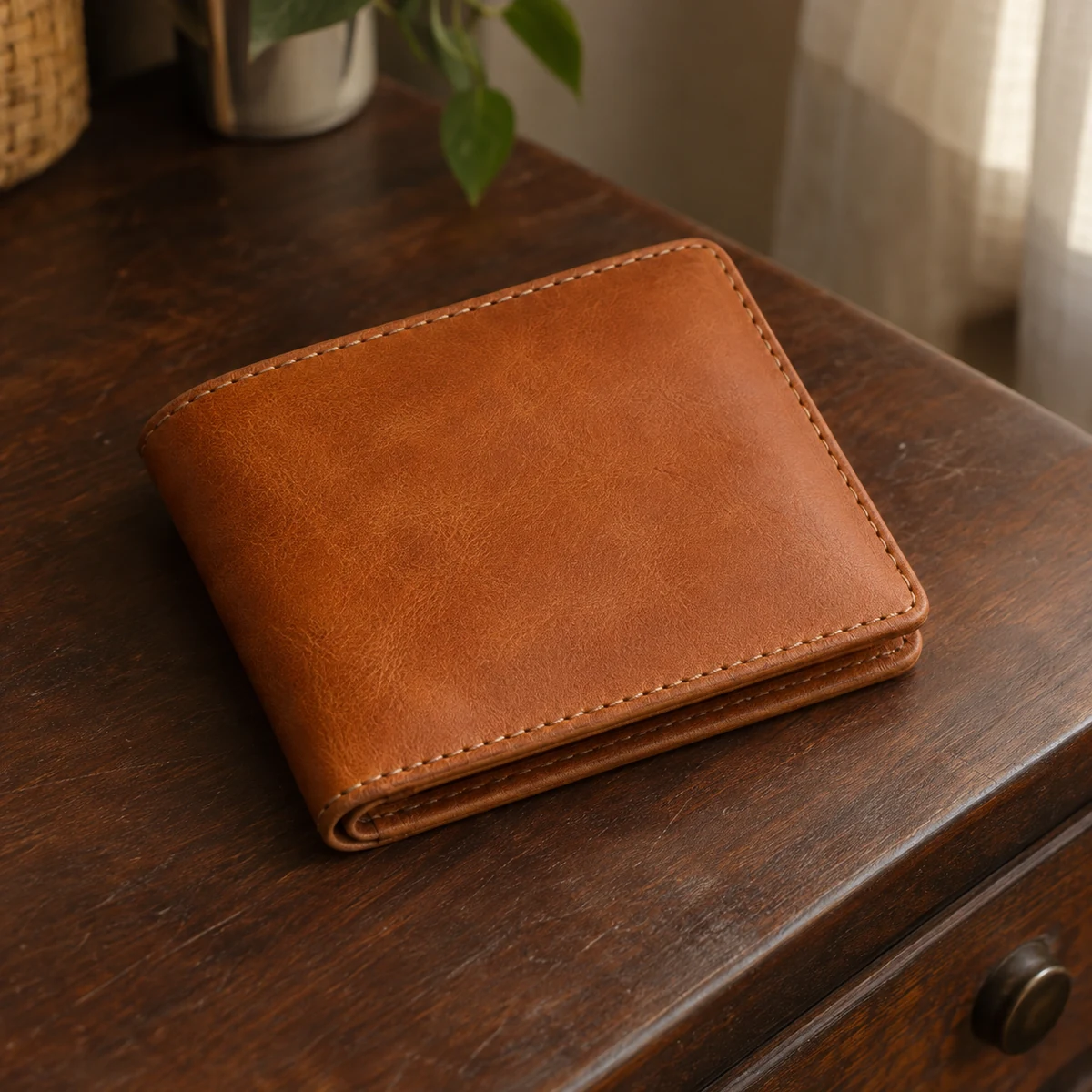
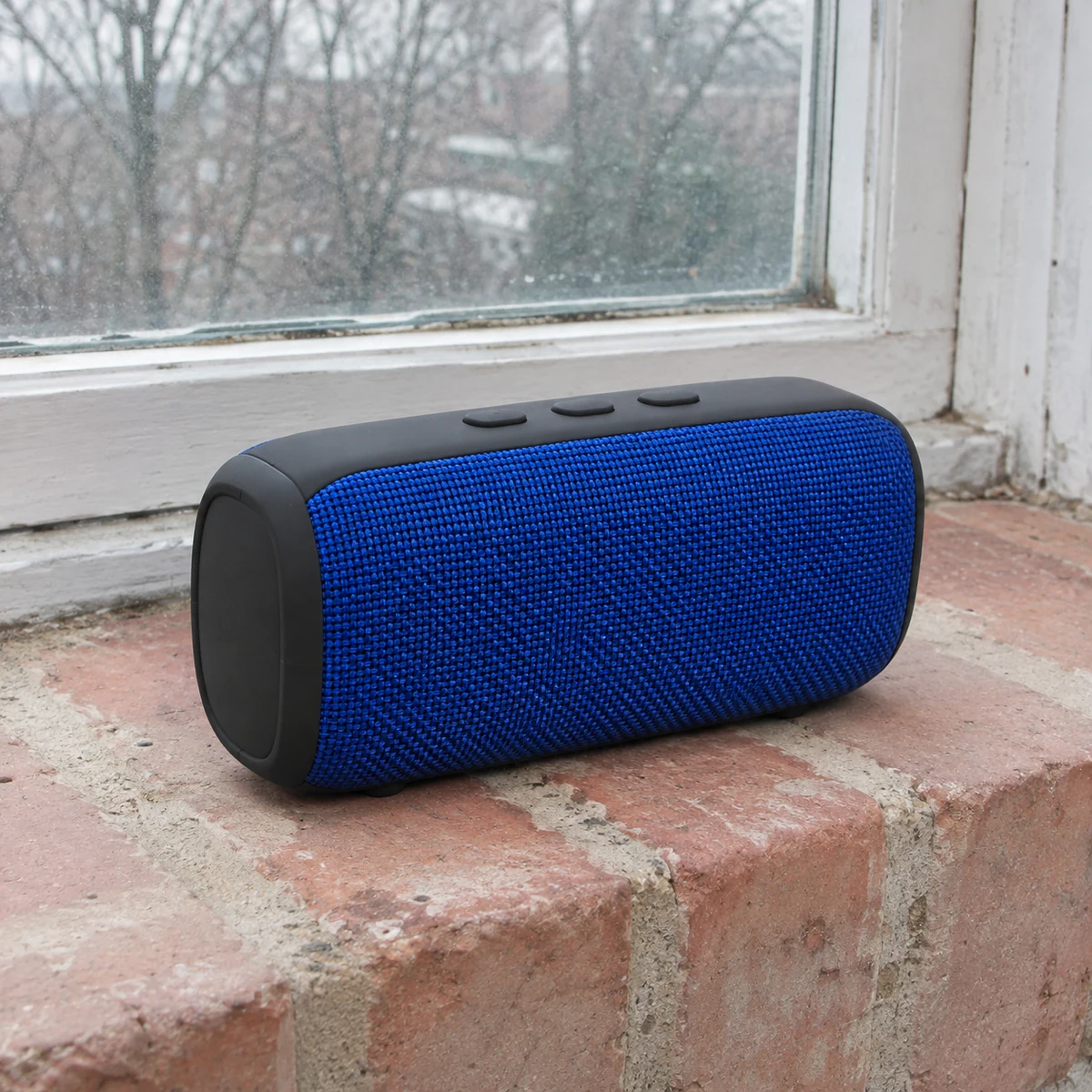
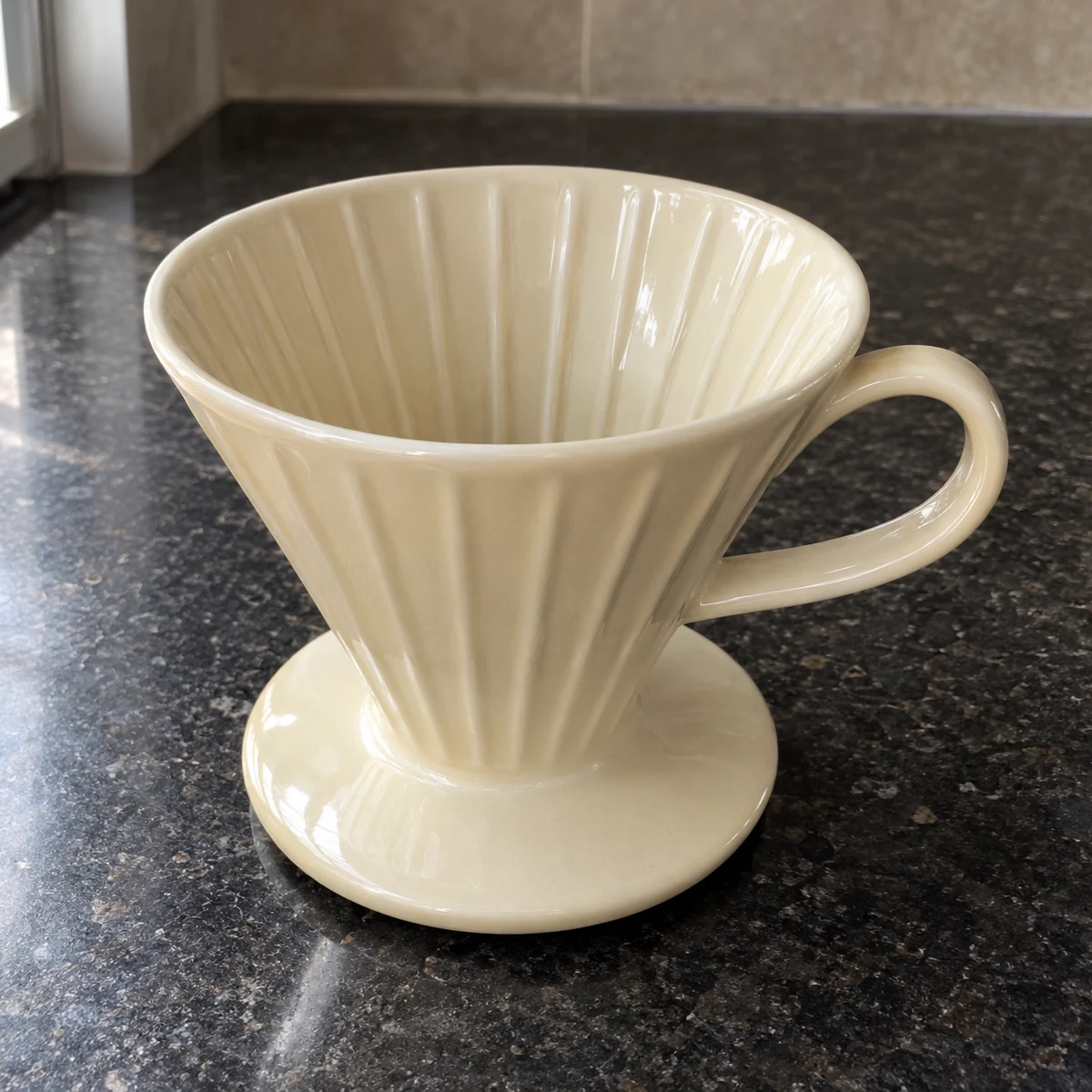
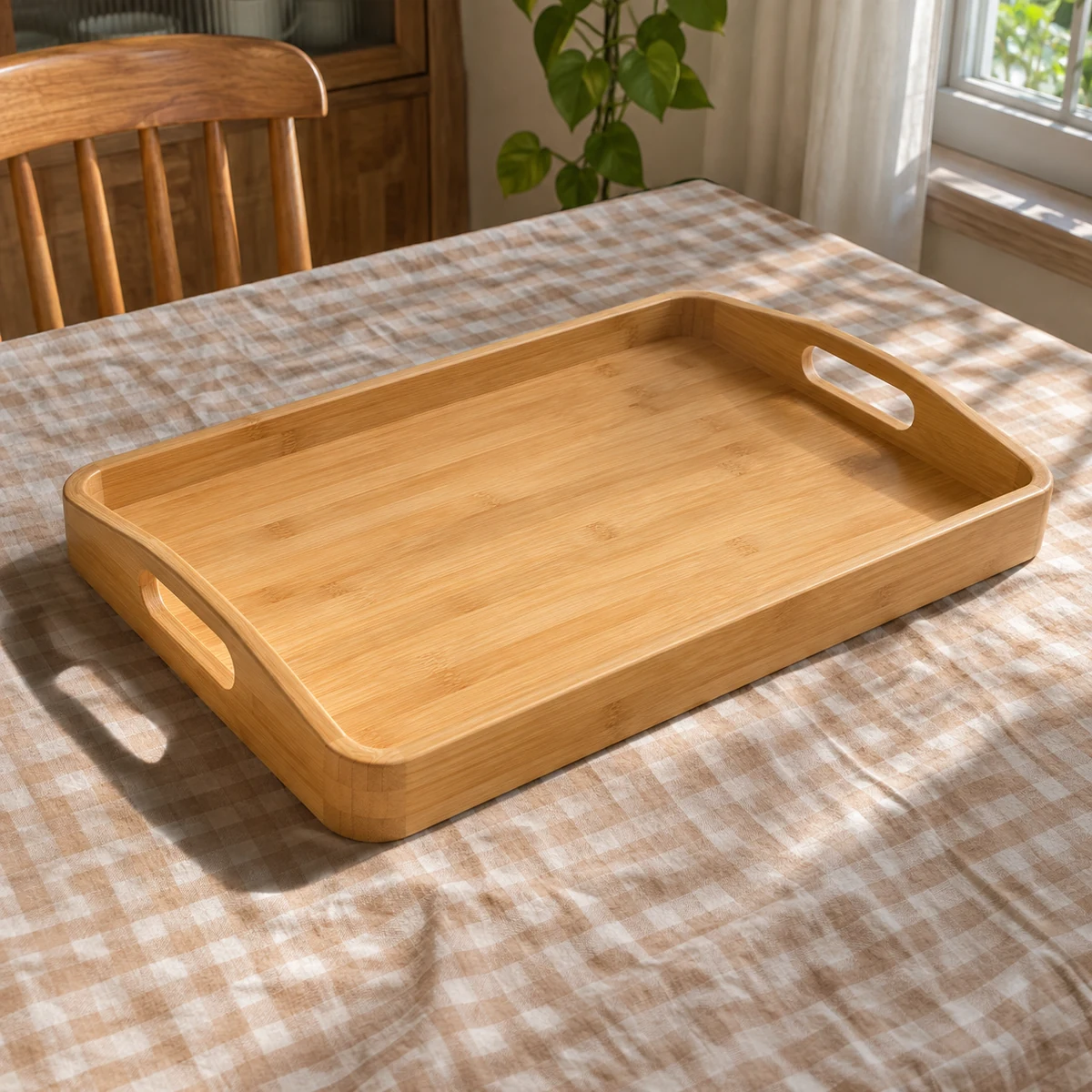
Give six different products one consistent sage-green studio background.
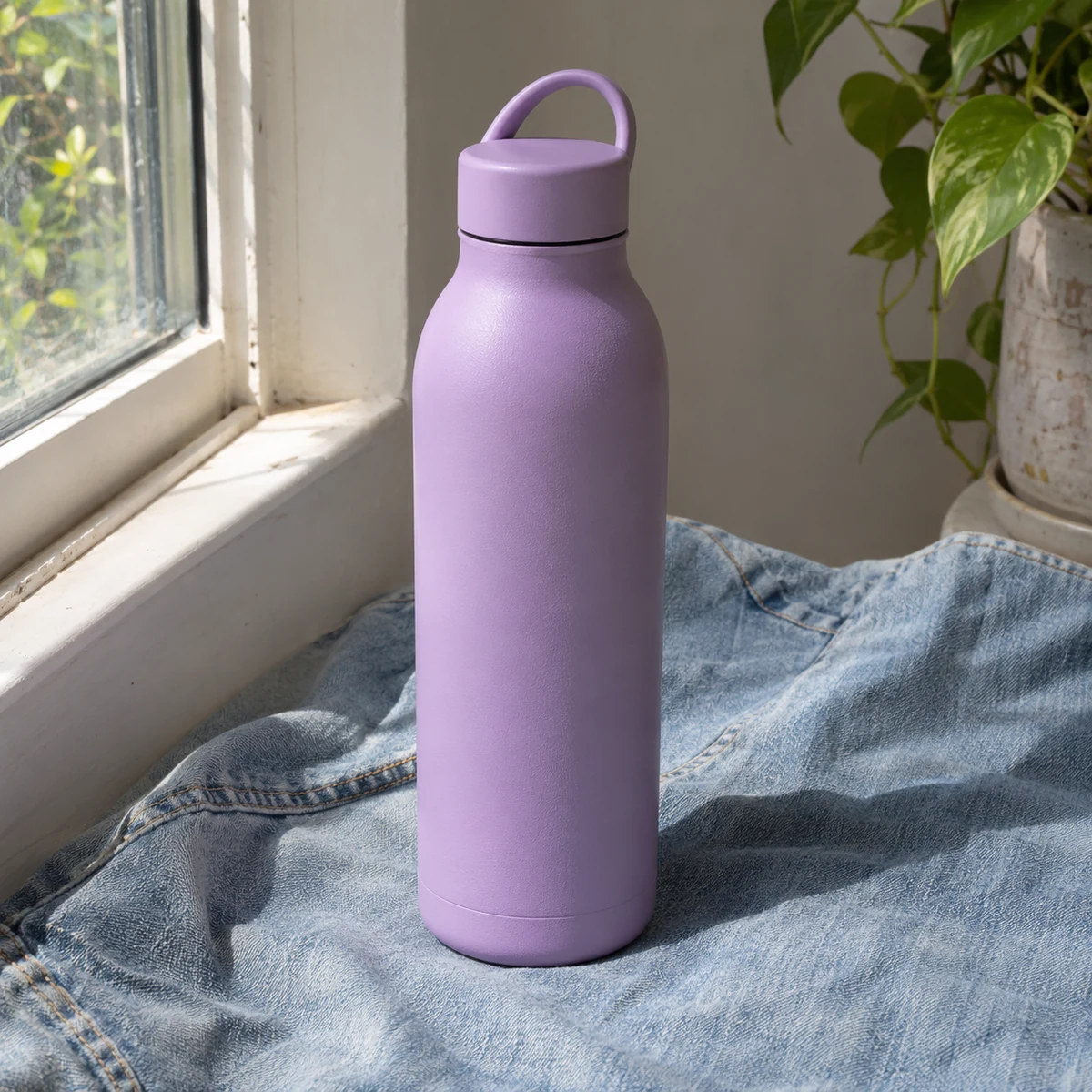
- 01Lavender insulated bottle
- 02Coral mesh running shoe
- 03Caramel leather wallet
- 04Cobalt Bluetooth speaker
- 05Ivory ceramic coffee dripper
- 06Natural bamboo serving tray
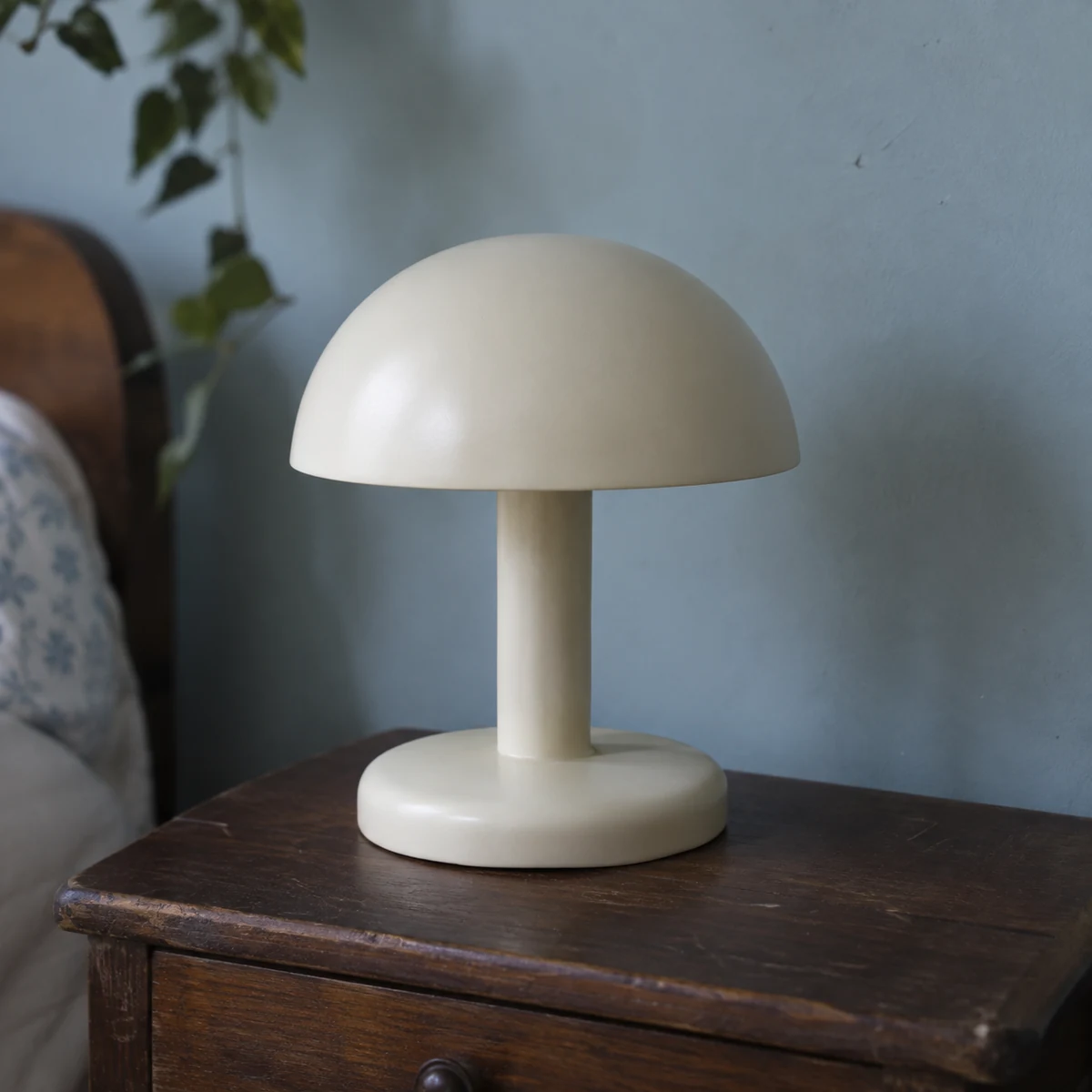
Catalog photo standardization
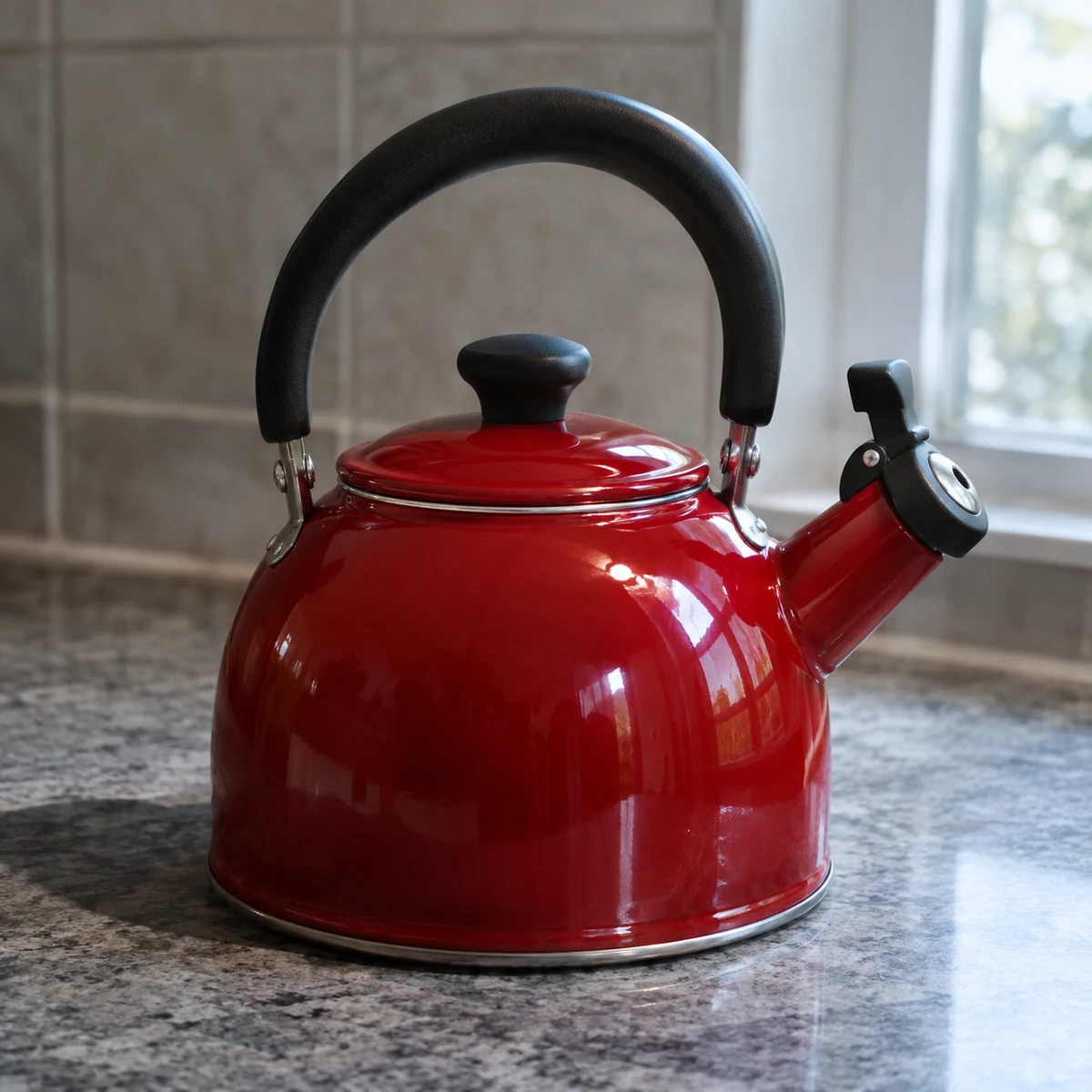
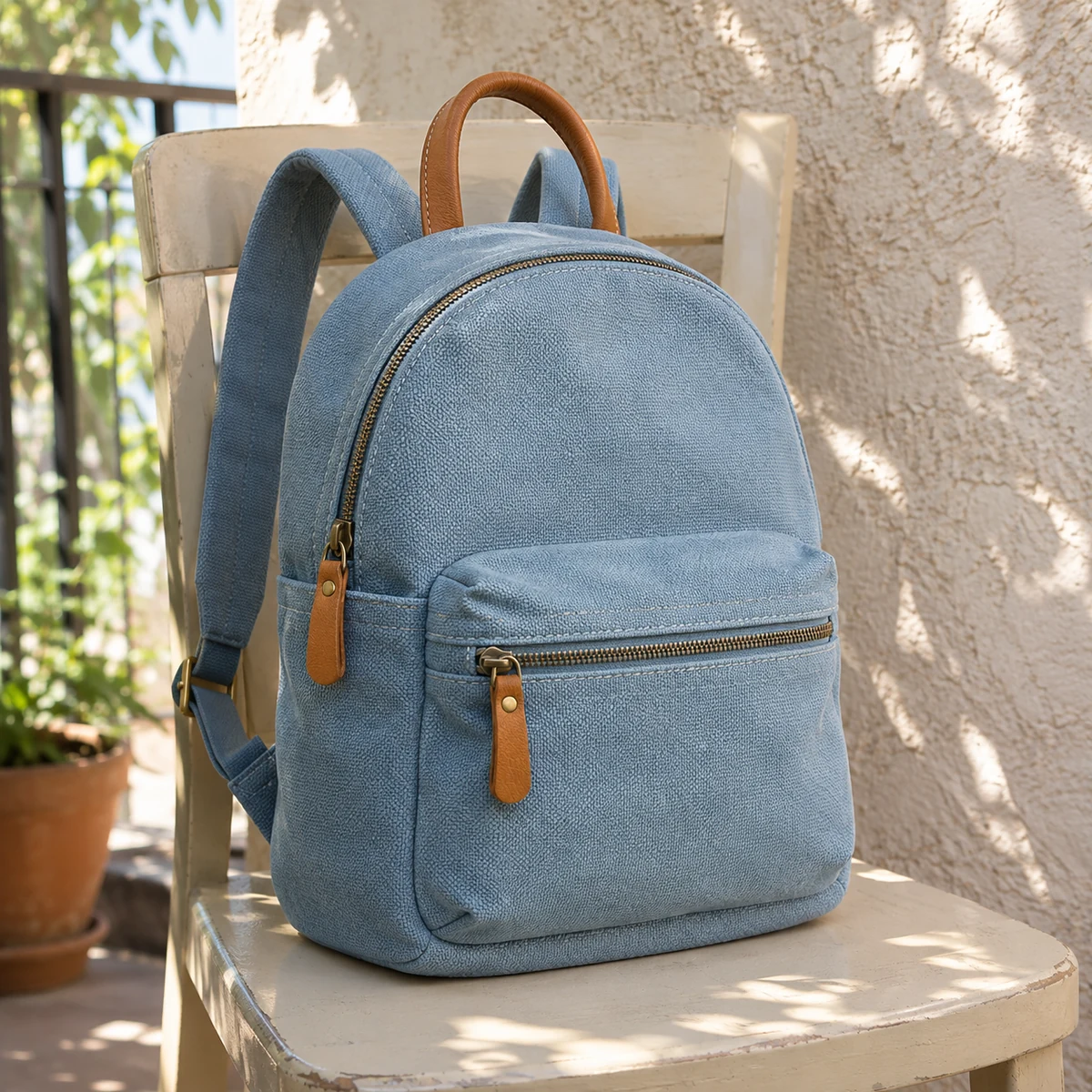
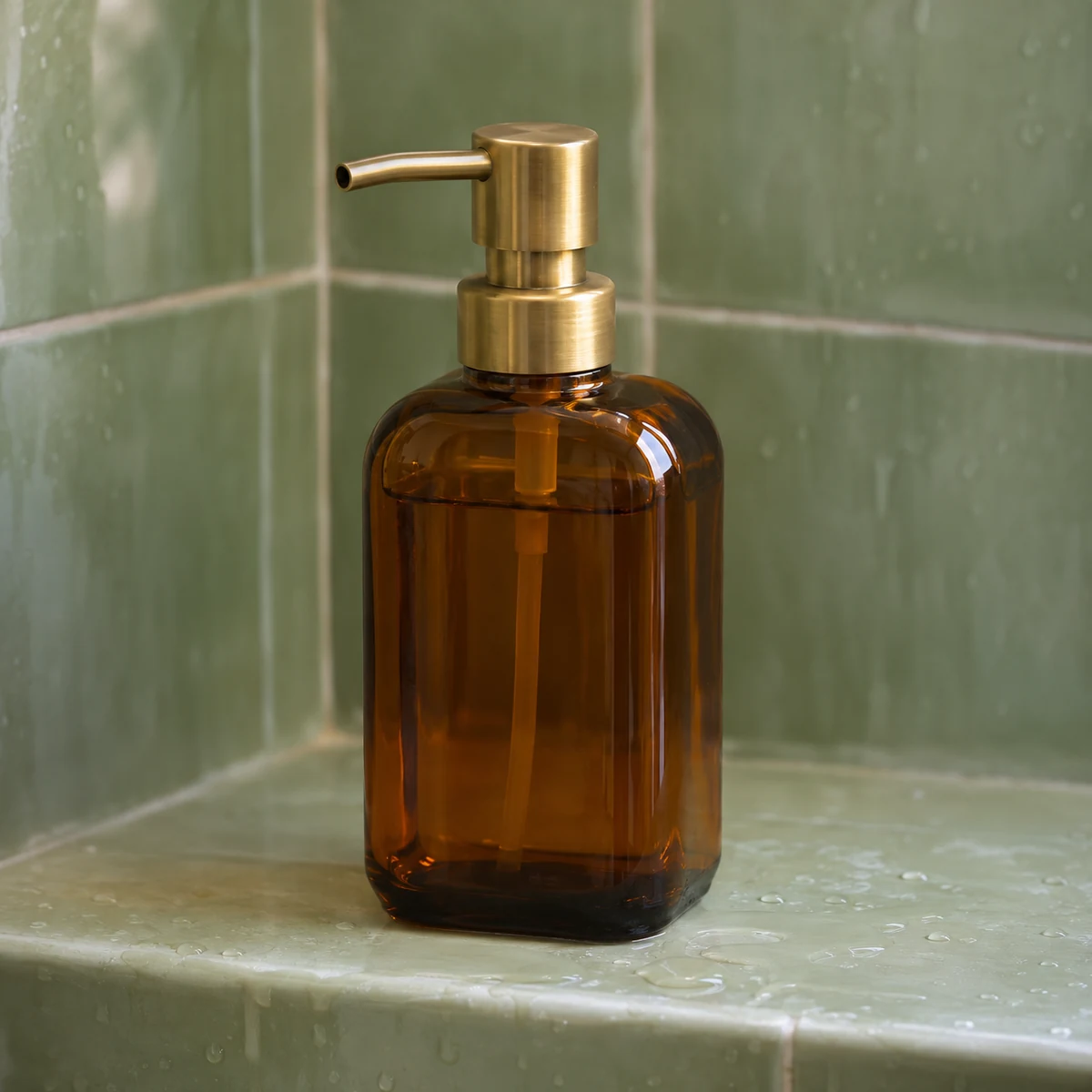
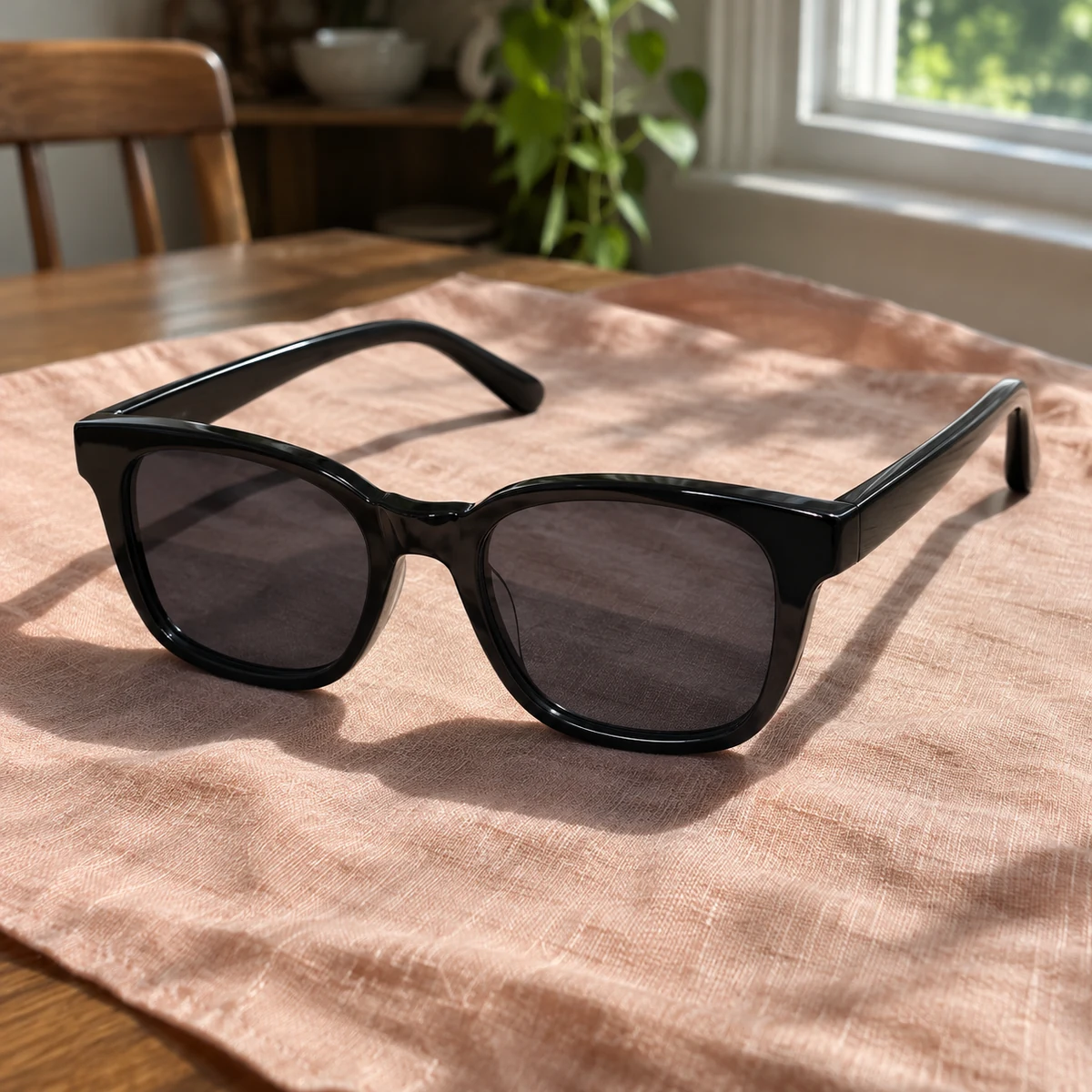
Consistent framing, margins, lighting and white balance across a catalog.
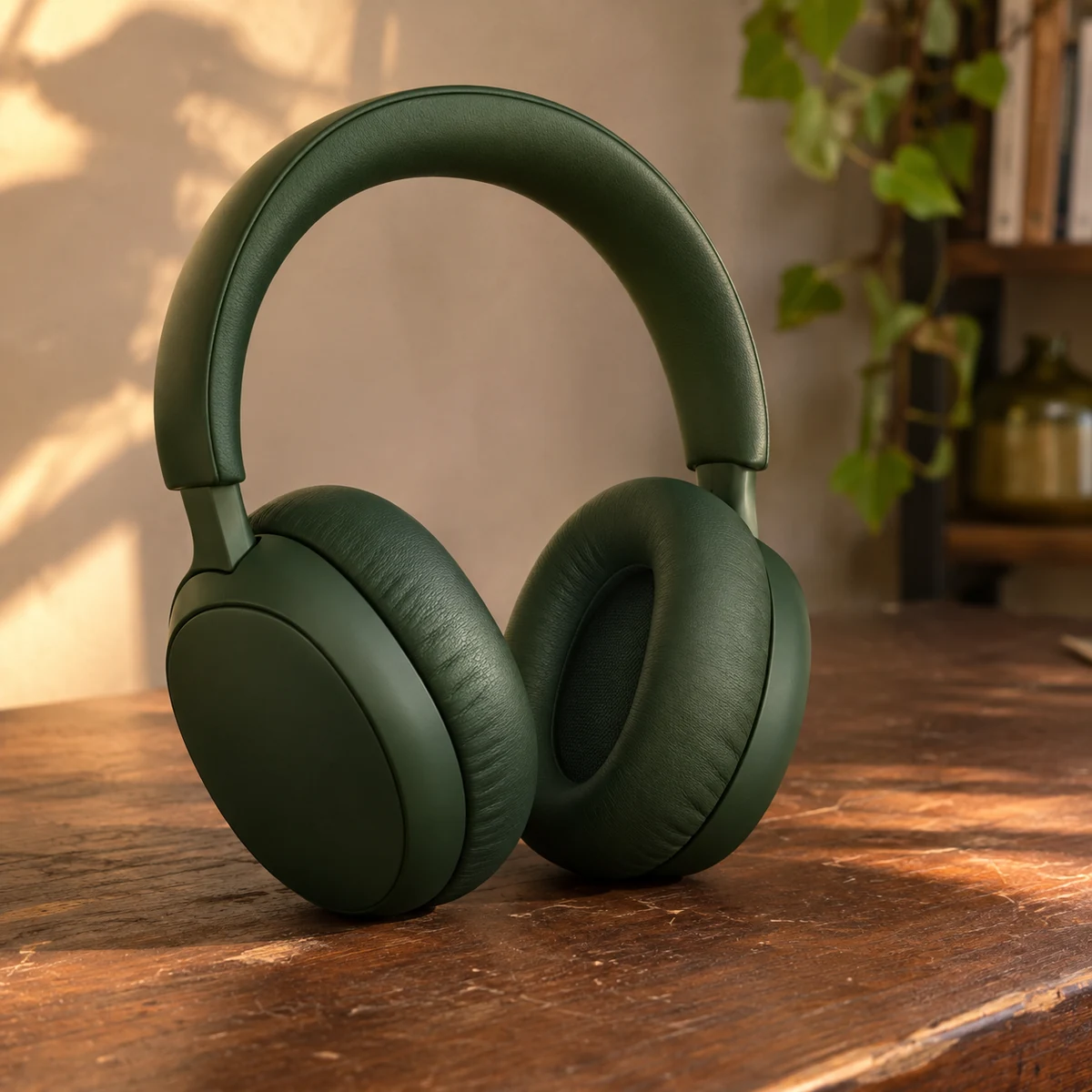
- 01Forest-green headphones
- 02Red enamel kettle
- 03Blue canvas backpack
- 04Amber glass soap dispenser
- 05Black sunglasses
- 06Cream mushroom lamp
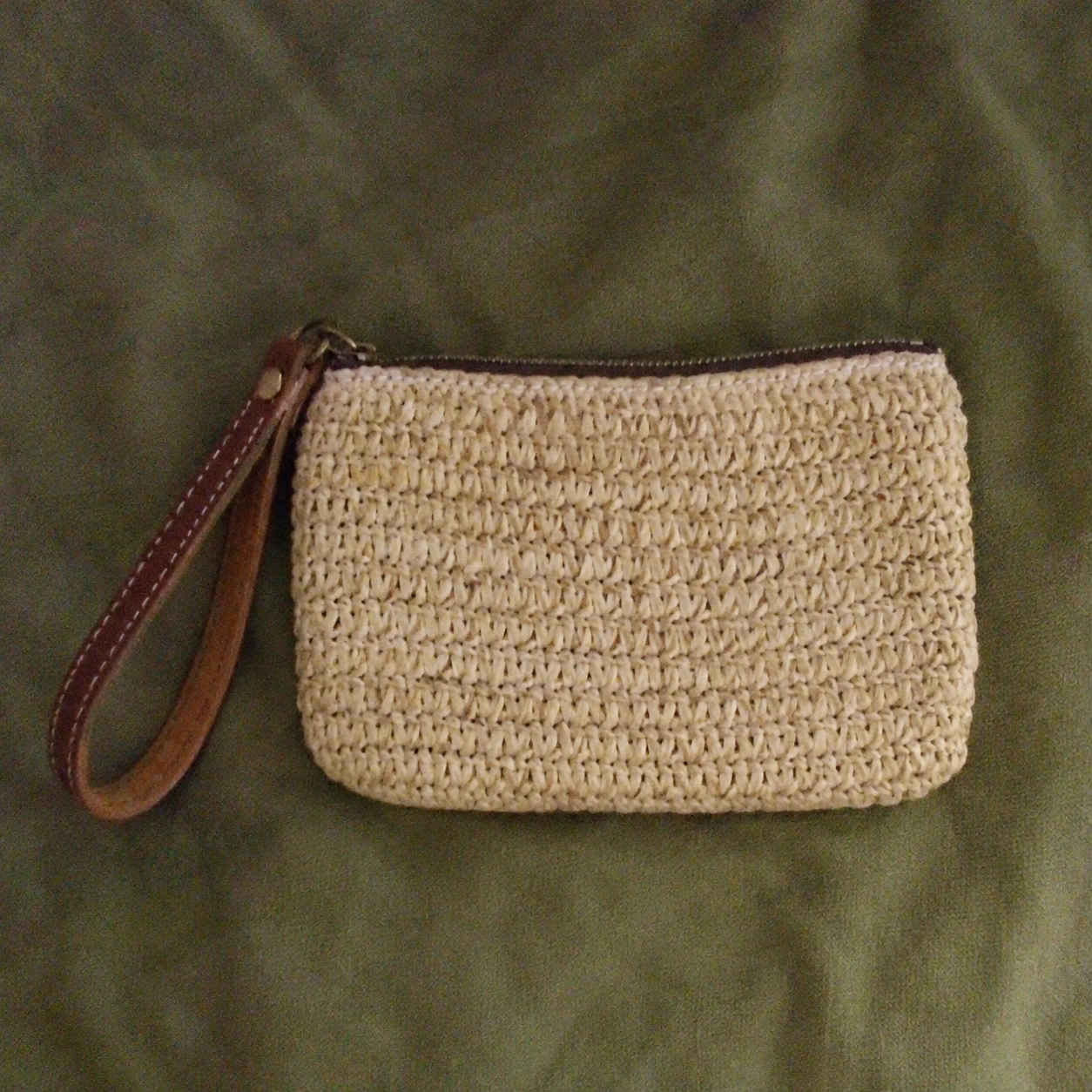
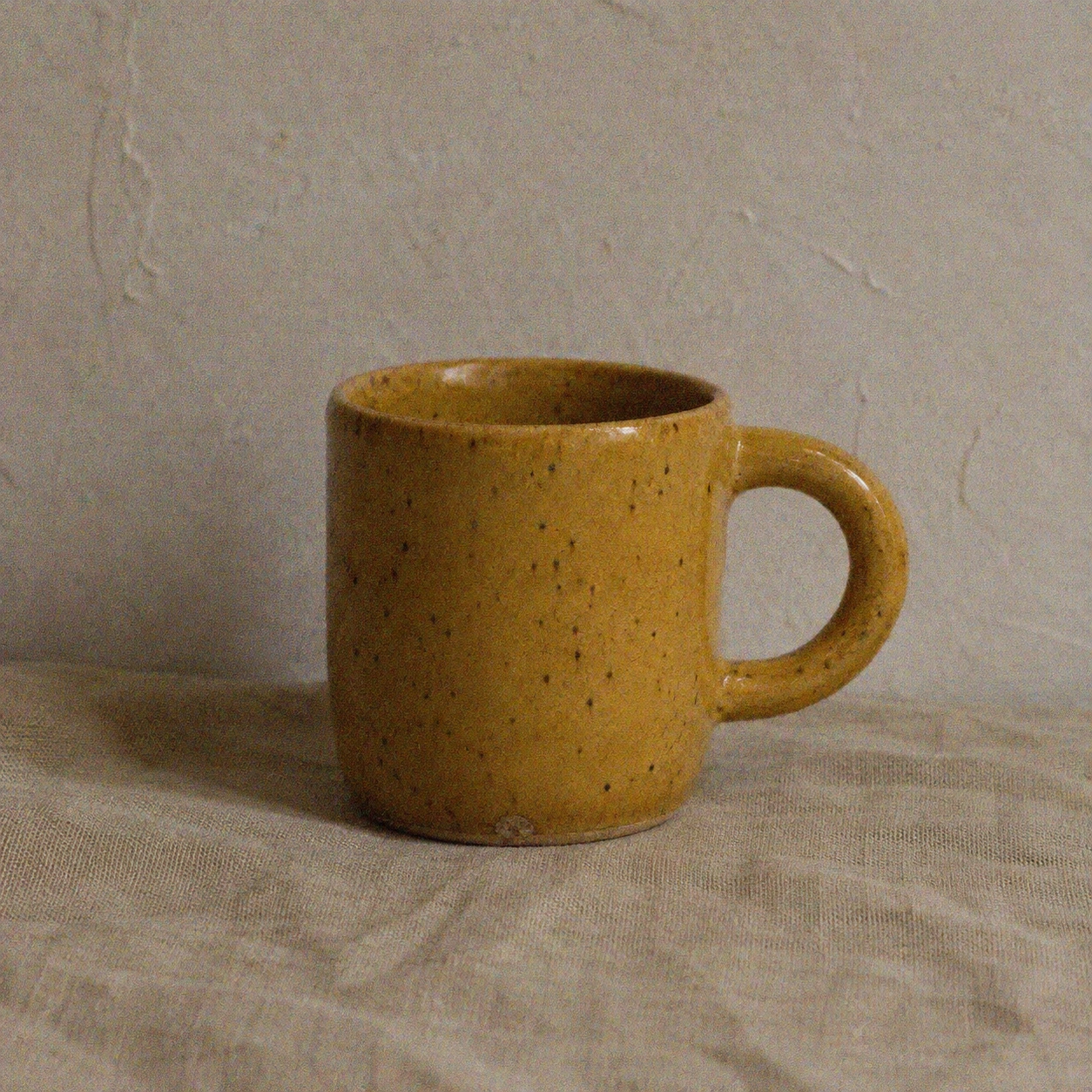
Product photo enhancement
Improve lighting, clarity and distracting backgrounds across six products.
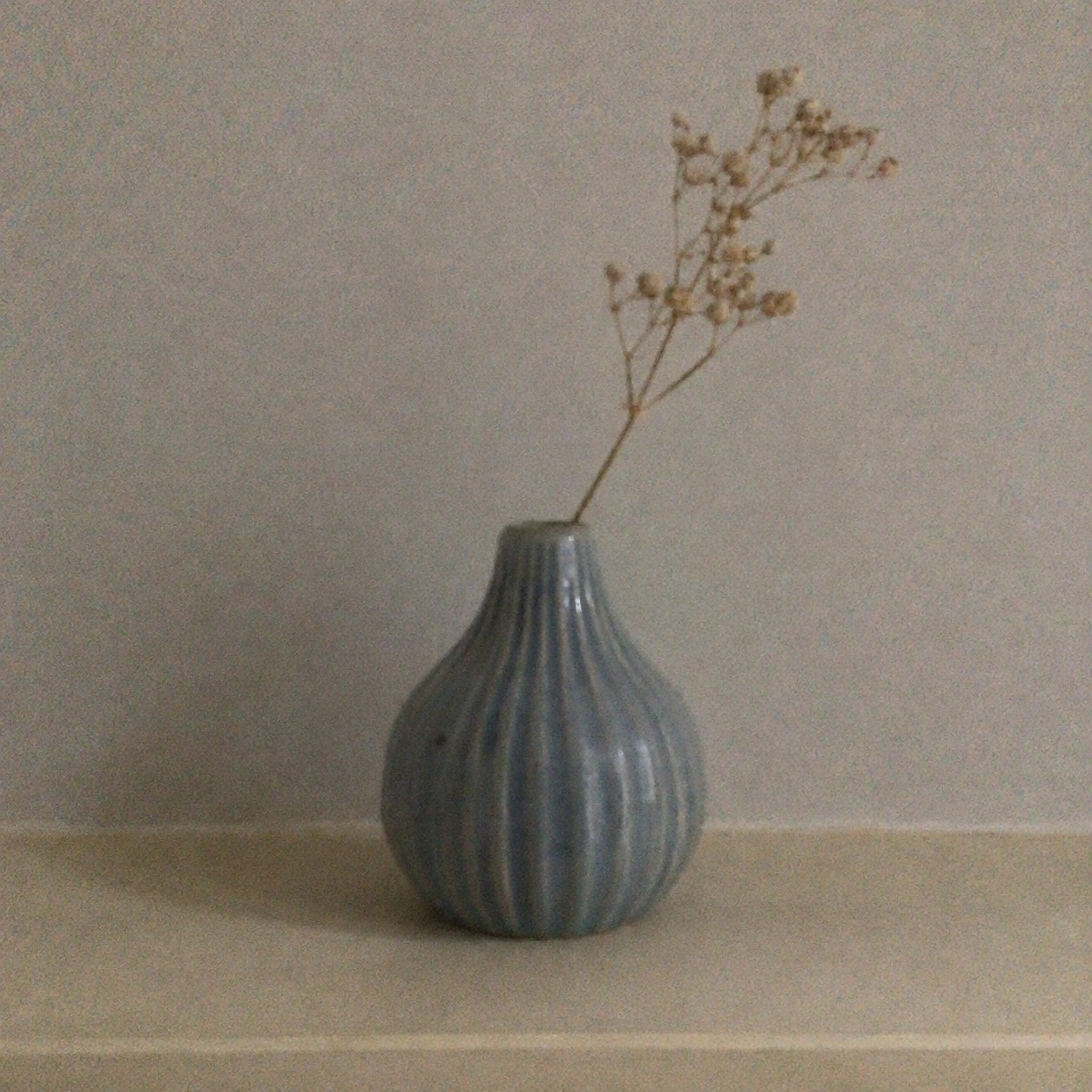
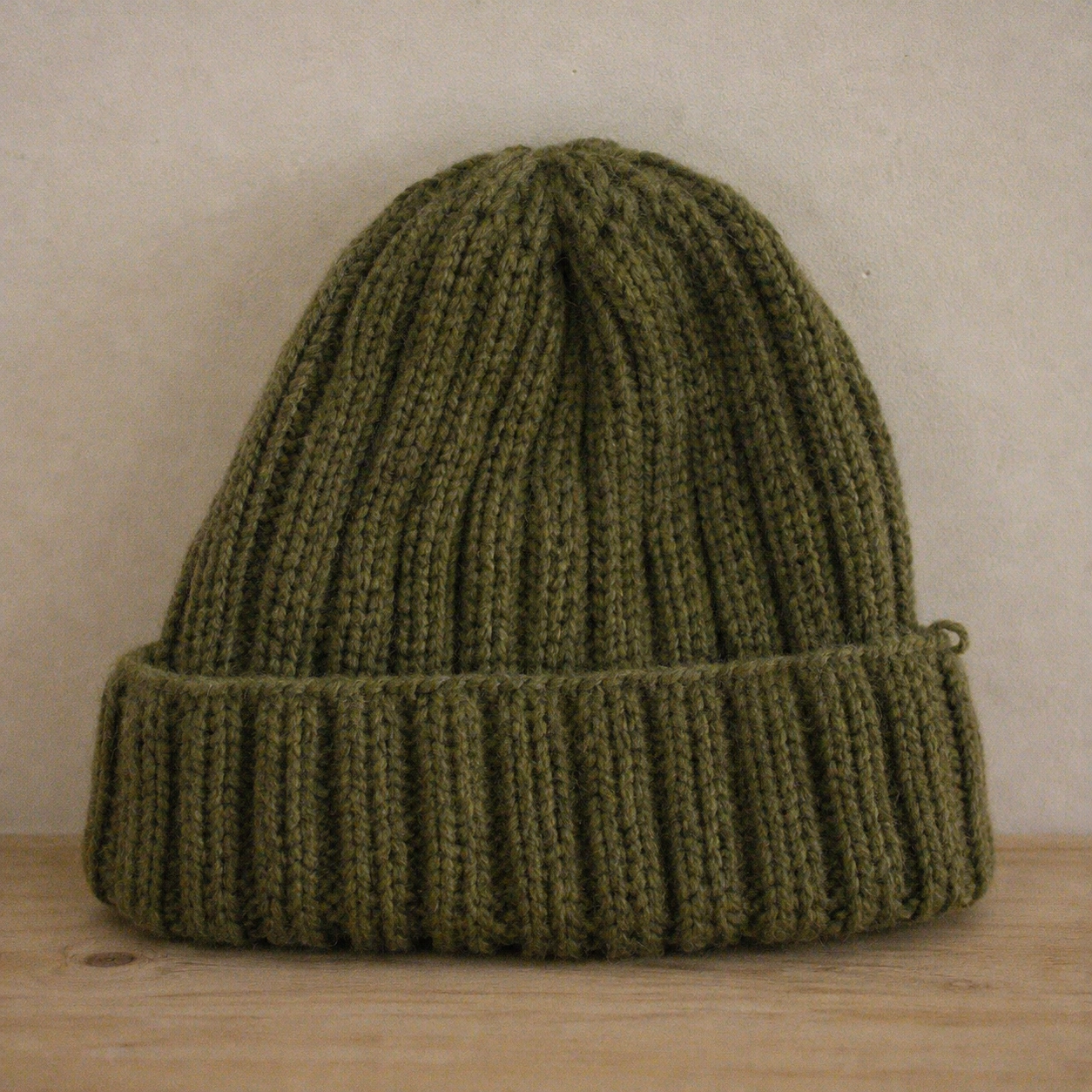
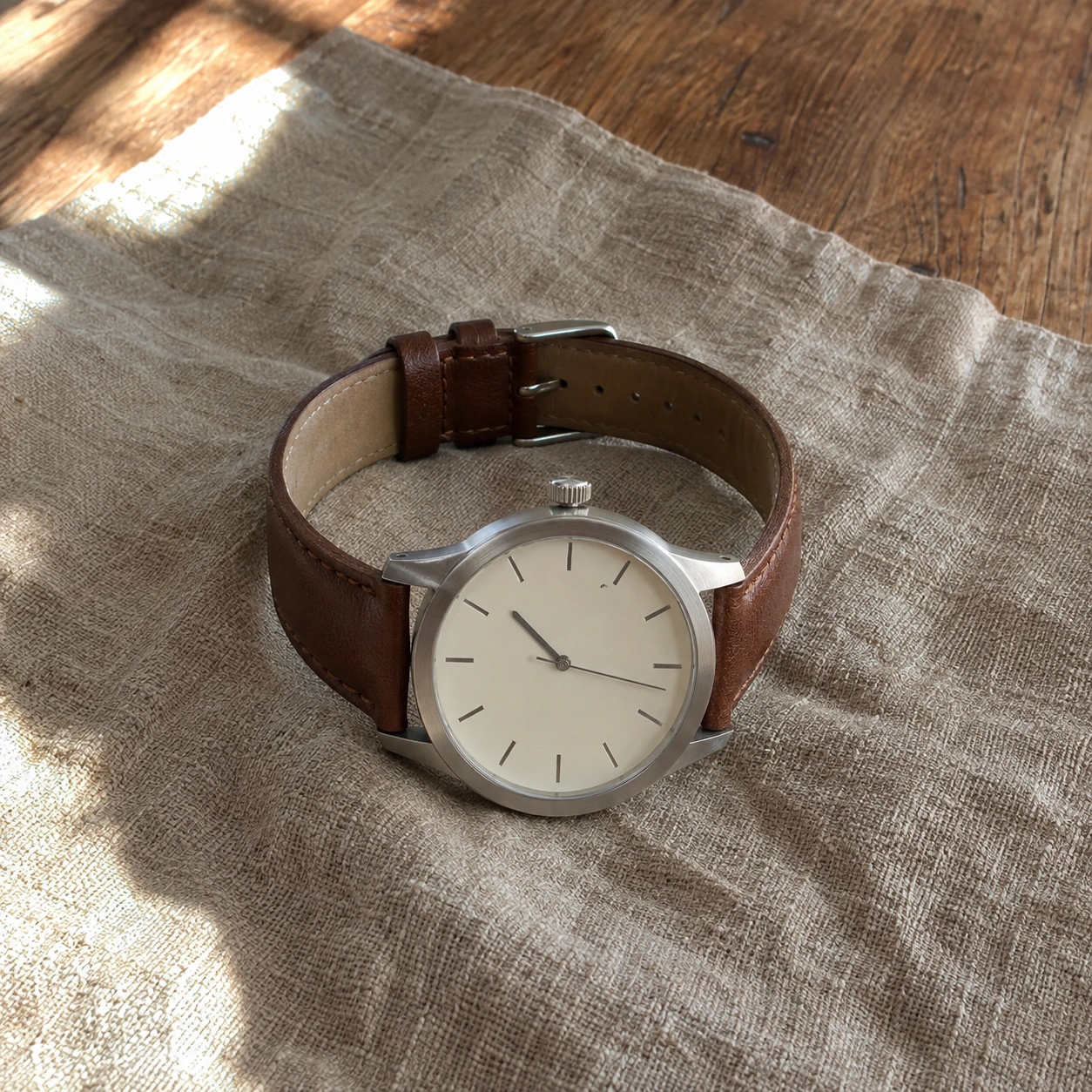
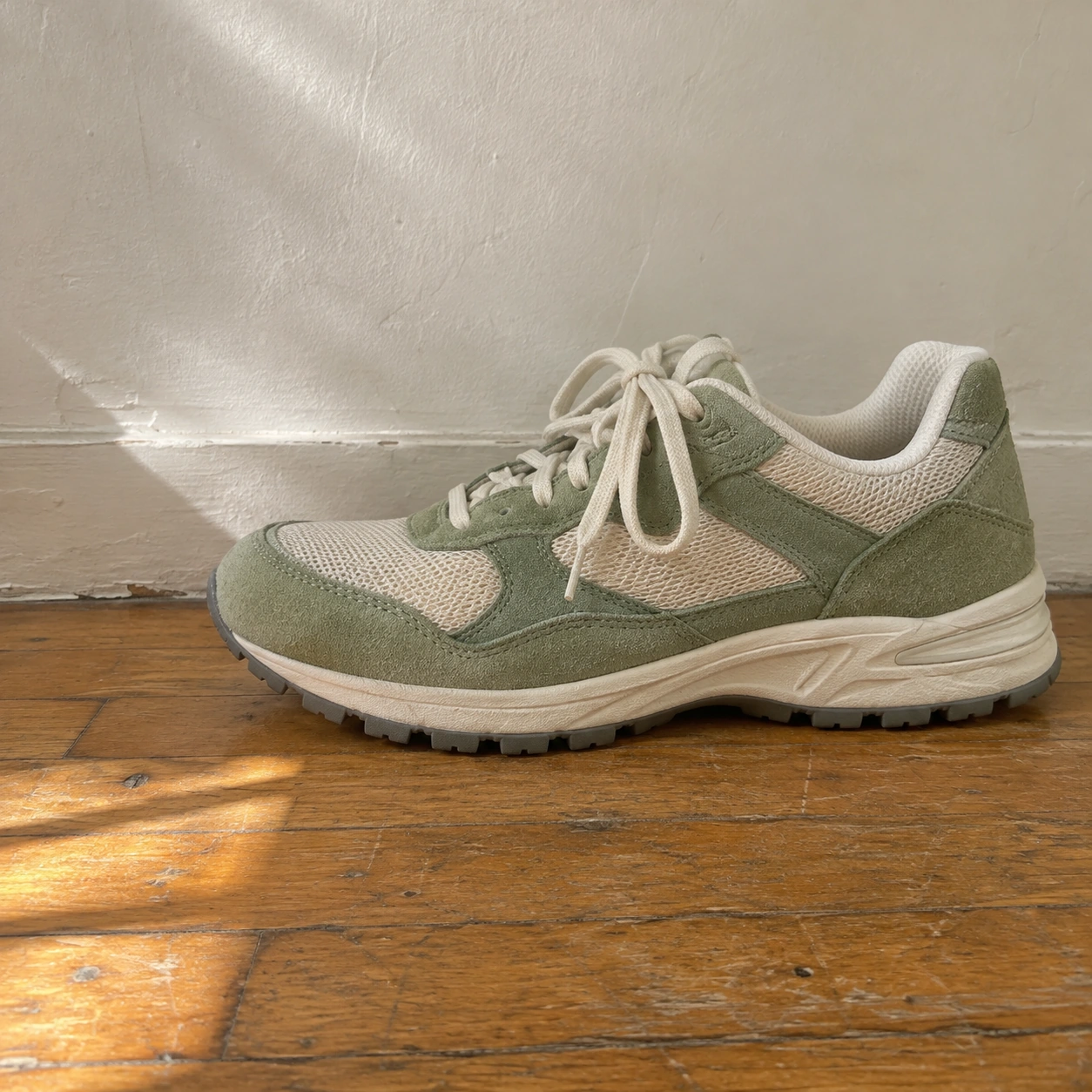
- 01Ribbed ceramic vase
- 02Crochet wristlet
- 03Mustard ceramic mug
- 04Ribbed knit beanie
- 05Leather-strap watch
- 06Sage mesh sneaker
Product scenes & visual variations
Product lifestyle scenes
Six prompts take the same blue bottle from a living room to a mountain trail, gym, café, bathroom and beach.
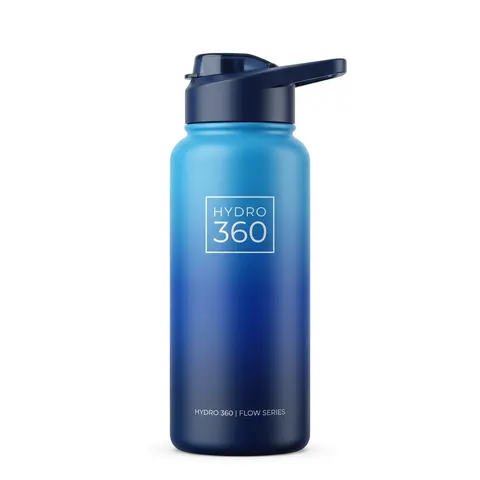
- 01Calm living room
- 02Mountain trail
- 03Gym essentials
- 04City café
- 05Bathroom shelf
- 06Beach picnic
Product color concepts
Explore six possible colorways for one bag. Verify available colors against your real product variants before listing them.
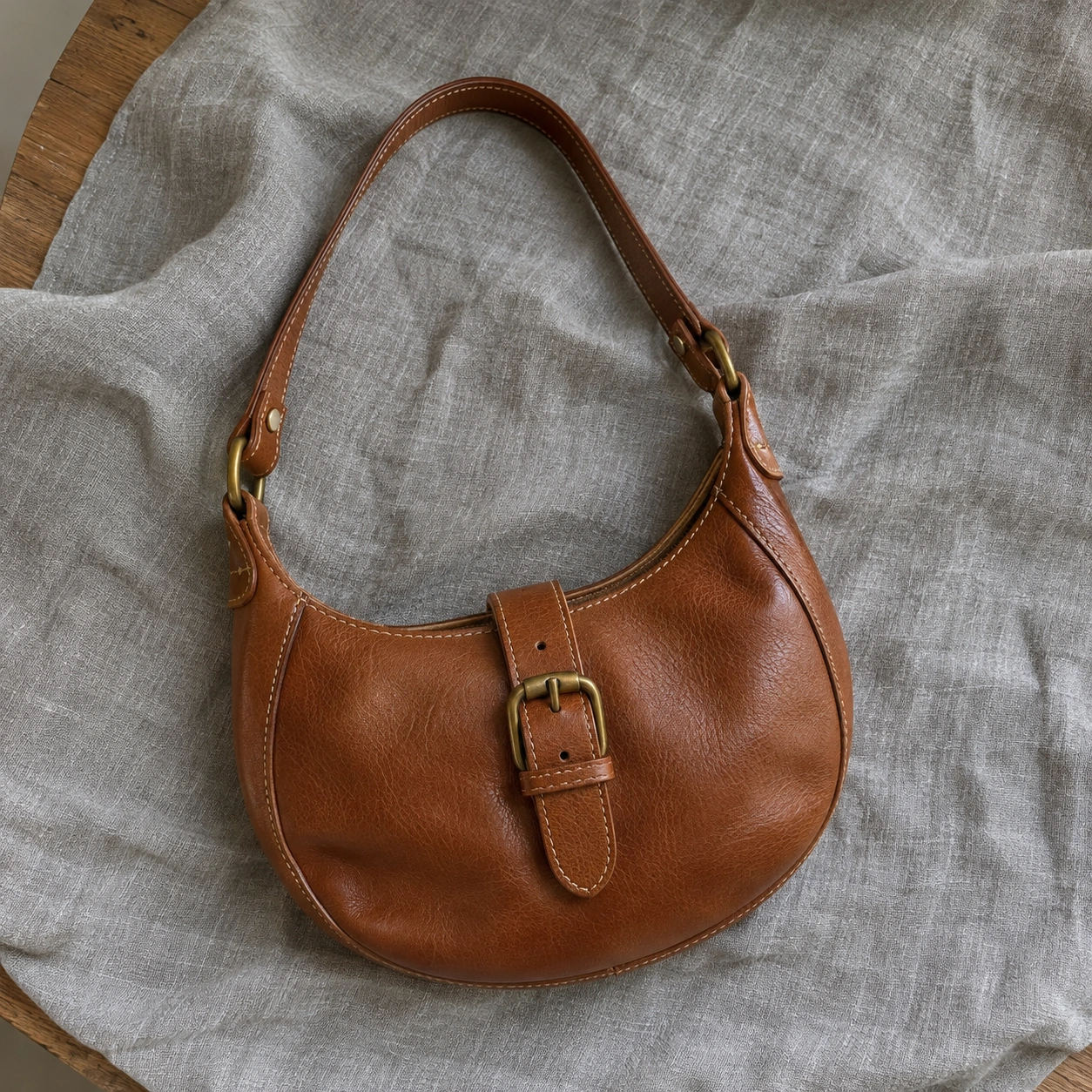
- 01Ivory
- 02Midnight black
- 03Sage green
- 04Burgundy
- 05Navy blue
- 06Caramel tan
Product angle concepts
Explore six views of one bag. Verify any angles or hardware the reference does not show against the actual product.
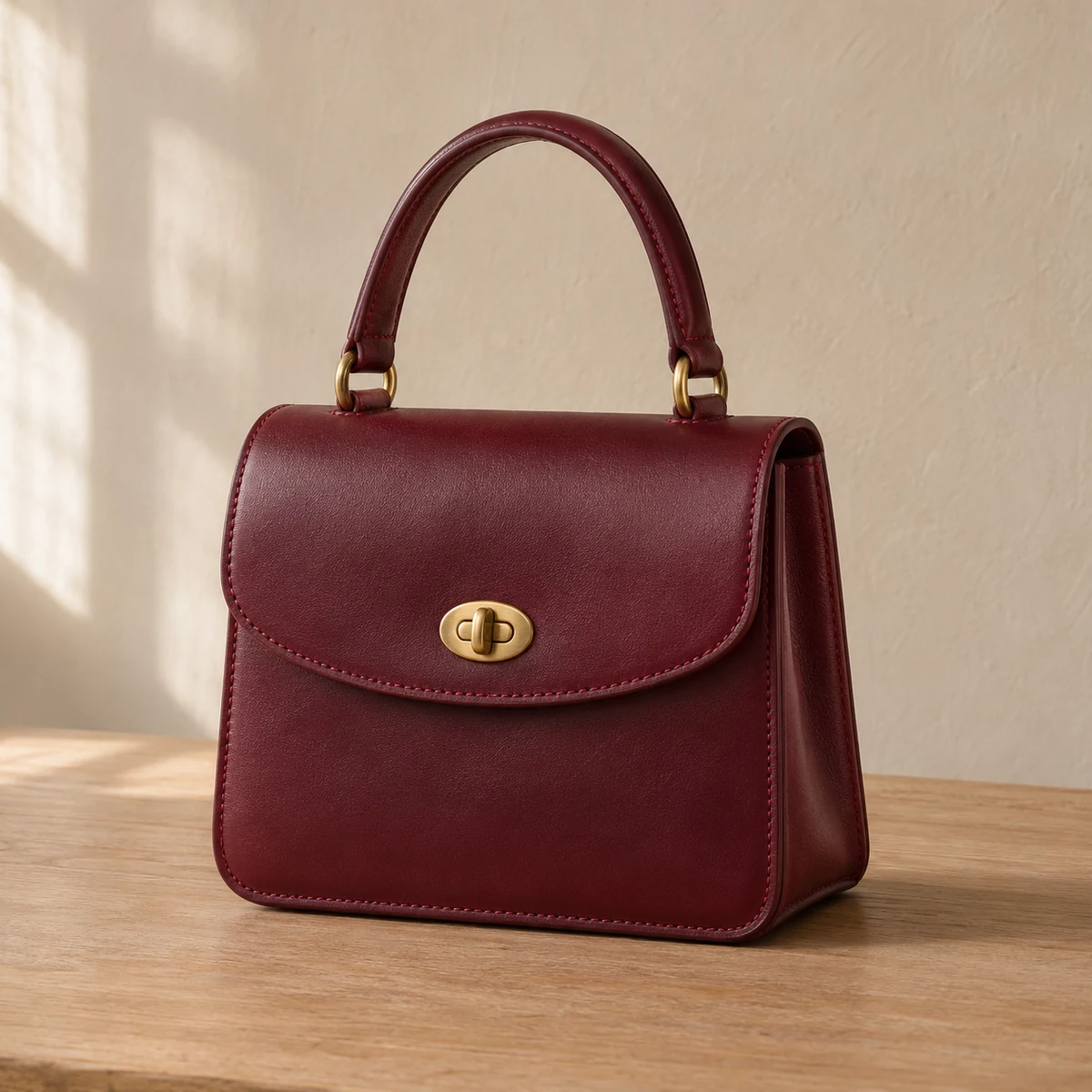
- 01Front view
- 02Three-quarter view
- 03Side profile
- 04Rear view
- 05Top construction
- 06Twist-lock detail
Advertising & marketing content
Ad creative variations
Turn one photo of a yuzu soda can into six campaign ideas, from an ingredient-led still life to a bold graphic launch.
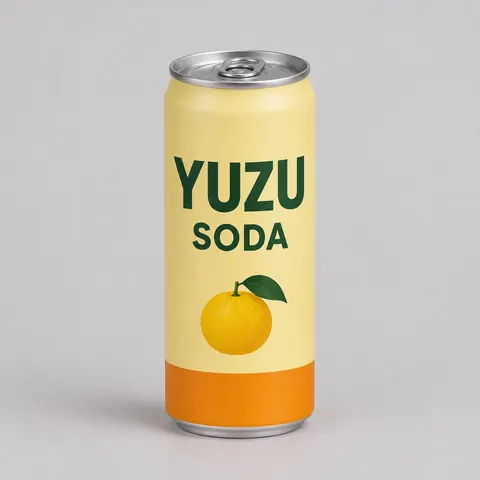
- 01Ingredient story
- 02Everyday ritual
- 03Bold graphic
- 04Premium dark
- 05Fresh launch
- 06Giftable moment
Seasonal product campaigns
Six seasonal campaign concepts around one perfume bottle.
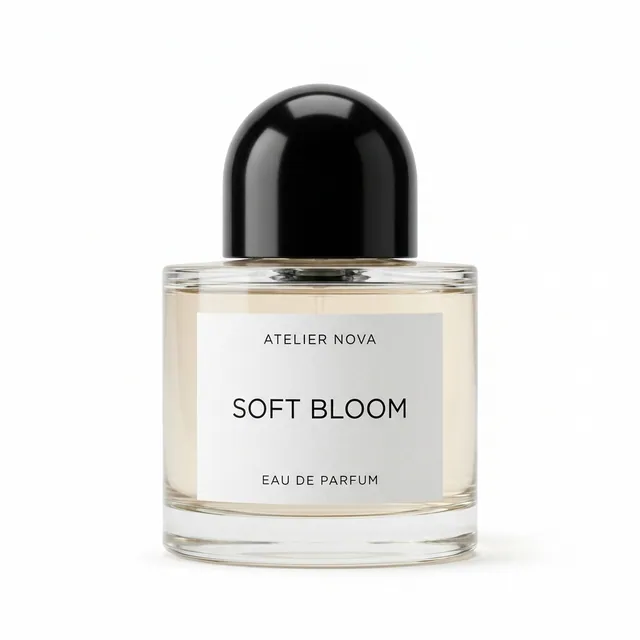
- 01Holiday gift
- 02Black Friday
- 03Valentine’s Day
- 04Spring bloom
- 05Summer light
- 06Autumn warmth
Product social media content
Six ready-to-explore visual directions for a coffee brand feed.
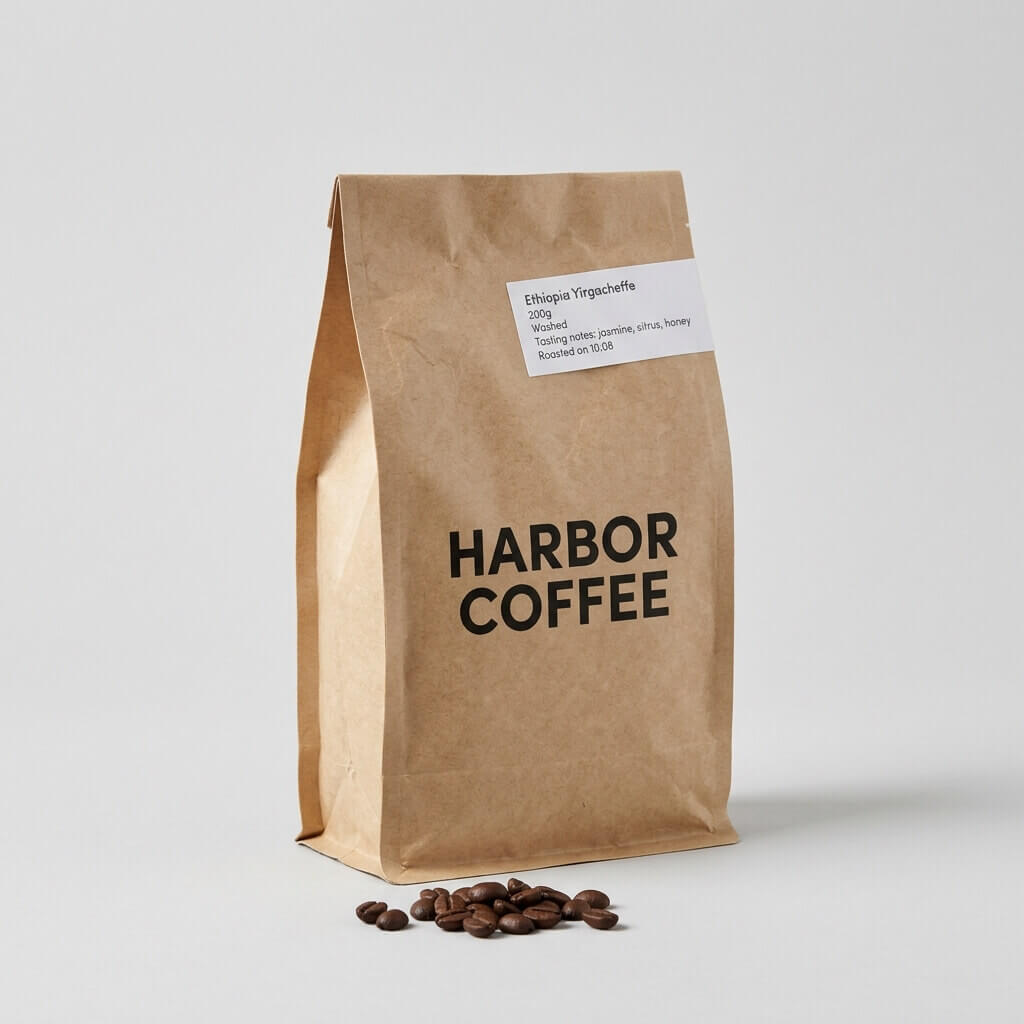
- 01Morning flat lay
- 02Brew ritual
- 03Café shelf
- 04Weekend outdoors
- 05Packaging detail
- 06Recipe moment
Check product details before publishing
Compare generated images with the actual product before publishing.
- Explore
- Backgrounds, lighting, styling, scenery and campaign layouts.
- Verify
- Logos, packaging text, colors, shape, materials and details that are hidden in the reference.
Batch limits and downloads
- Batch size
- Up to 200 tasks per batch and up to 10 outputs per task.
- Credits and retries
- Check the estimate before generating. Retry an individual task and receive a refund for failed outputs.
- Download and match results
- The ZIP includes images and prompts.csv, which maps results to source files and prompts.
Product image FAQs
How do I keep different products matched to the correct task?
Upload a separate photo for each product. Generate Product Scenes creates one task for every photo and scene combination, so each result stays linked to its own source photo.
Will logos, labels, and packaging text stay exactly the same?
A reference helps preserve appearance, but a model can still change small text, colors, caps, or packaging proportions. Specify the details that must stay and inspect them at full size. For exact branding, retain the original product layer and composite it over the new background in an editor.
How can a product catalog keep consistent framing and lighting?
Define the background, light direction, camera angle, and how much of the frame each product should occupy. Repeat those requirements across rows and keep the batch’s model and aspect ratio consistent. Test items with different sizes and materials, then compare their shadows and margins.
How do I reduce changes to fabric and fit in apparel images?
Use garment photos that clearly show the neckline, sleeves, texture, and print; add relevant detail references when needed. State which construction details must stay. On-model and ghost mannequin generation may alter the cut or folds, so compare results with the real garment rather than treating them as proof of fit.
Can one front-facing photo accurately produce other product angles?
You can explore other angles, but hidden features, ports, and patterns may be invented. Add a real reference photo for any angle that must be accurate. Without one, treat the result as a composition preview and verify it against the physical product before using it in a listing.
Do I need to regenerate the whole catalog to fix a few products?
Retry only the rows you want to fix. You can edit the instructions or photo for each row. Download any versions you want to keep before trying again.
How much does a product image batch cost?
The estimate depends on the model, resolution, reference images and prompts. Choose how many results you need, then review the estimated credits in the workspace before generating.
Can I download all product images together?
Yes. The ZIP includes completed images and prompts.csv, which records the source file for each result. Name your originals by SKU before uploading to make them easier to match.