Is there an AI tool that can generate 100 different images from different prompts at once?
Yes. BulkIMG Flow turns 100 different prompts into one batch of images. Learn how to import your list, check the cost, and download the results together.
You have a spreadsheet full of ideas. Maybe it's a month of social posts, a stack of blog covers, or a set of product concepts. Writing the prompts was the useful part. Copying each one into a chat window, waiting, and saving the result is the part you'd rather skip.
That's exactly what a batch AI image generator with a prompt list is for. In BulkIMG Flow, you can give each image its own prompt, review the whole list in a table, and start the batch from one place.
100 prompt rows × 1 image per row = 100 requested images. Open Generate from Prompts, paste or import the list, choose a model, and review the credit total before confirming.
Open the batch image workspace →What “100 images at once” actually means
The phrase can hide two quite different things: making lots of versions of one idea, or working through a list of different ideas. If you need an image for each of 100 article titles, you want the second one.
This is a real source of confusion. A user in this Stable Diffusion discussion wanted to stop copying and pasting 100 prompts individually. A ChatGPT user with a list of 140 prompts described much the same problem: generating and downloading each image by hand.
BulkIMG Flow lets you submit that list as one batch. Each prompt gets its own row and its own results. Up to 15 images can be in progress concurrently; the rest wait for a slot. It doesn't mean all 100 images start on 100 separate machines at the same instant, or that they finish together.
That distinction matters when you're comparing tools. Look for multiple prompt rows, a way to import your list, a visible cost estimate, and a way to download the finished files together.
Here's how I'd set up a first batch
I'd start with a handful of prompts before committing the whole list. It's much easier to spot an overly dark visual style or the wrong image shape in four samples than in 100 finished files.
1. Put one complete prompt on each row
Open Generate from Prompts in BulkIMG Flow. Use Add prompts to paste one prompt per line, or Import Excel/CSV if your list is already in a spreadsheet. The CSV Template link sits beside the import button.
For CSV files, use a column called prompt. Keep each prompt in one cell. A normal spreadsheet export handles commas inside a cell; if you write CSV by hand, wrap prompts containing commas in double quotes.
prompt
"A sage-green bicycle outside a brick bookstore, soft morning light."
"An amber dropper bottle on limestone beside an olive branch."
"A blue coffee mug and a blank notebook beside a rainy cafe window."
Download a ready-to-import CSV with 100 different prompts →
The example list covers products, cafes, interiors, outdoor scenes, food, and everyday lifestyle imagery. Change anything that doesn't fit your project. Before generating, check that the table contains only the prompts you want to run, especially if you're returning to an older batch.
2. Set Images per row to 1
This is the setting I'd double-check first. 100 prompts with ×1 requests 100 images. The same list with ×4 requests 400 images, with a correspondingly larger credit estimate.
If you actually want four options for every idea, ×4 is useful. For a first pass through 100 different ideas, ×1 makes the results easier to review and the budget easier to control.
Choose the aspect ratio for the job, too. A landscape image may suit a blog cover; a portrait composition may suit a social post. Individual rows can have their own aspect ratio when the selected model supports it.
3. Try the model on a few rows
The examples below use GPT Image 2.5. Pick it in the model menu, start at 1K if you're checking the idea and composition, and select a few rows for your first run.
When those results look right, run the remaining rows. Be deliberate about the selection: running the entire table again also requests fresh images for rows that already have results.
4. Check the total, then confirm
The bottom bar shows the estimated image count and credits. Clicking Generate opens a confirmation with the task count, total images, and estimated credits. This is the moment to catch an accidental ×4 setting or a prompt you didn't mean to include.
You can prepare prompts and settings before signing in. When you generate, you'll need to sign in and have enough credits. The workspace opens the credit-purchase panel if your balance is too low.
Four prompts, four very different images
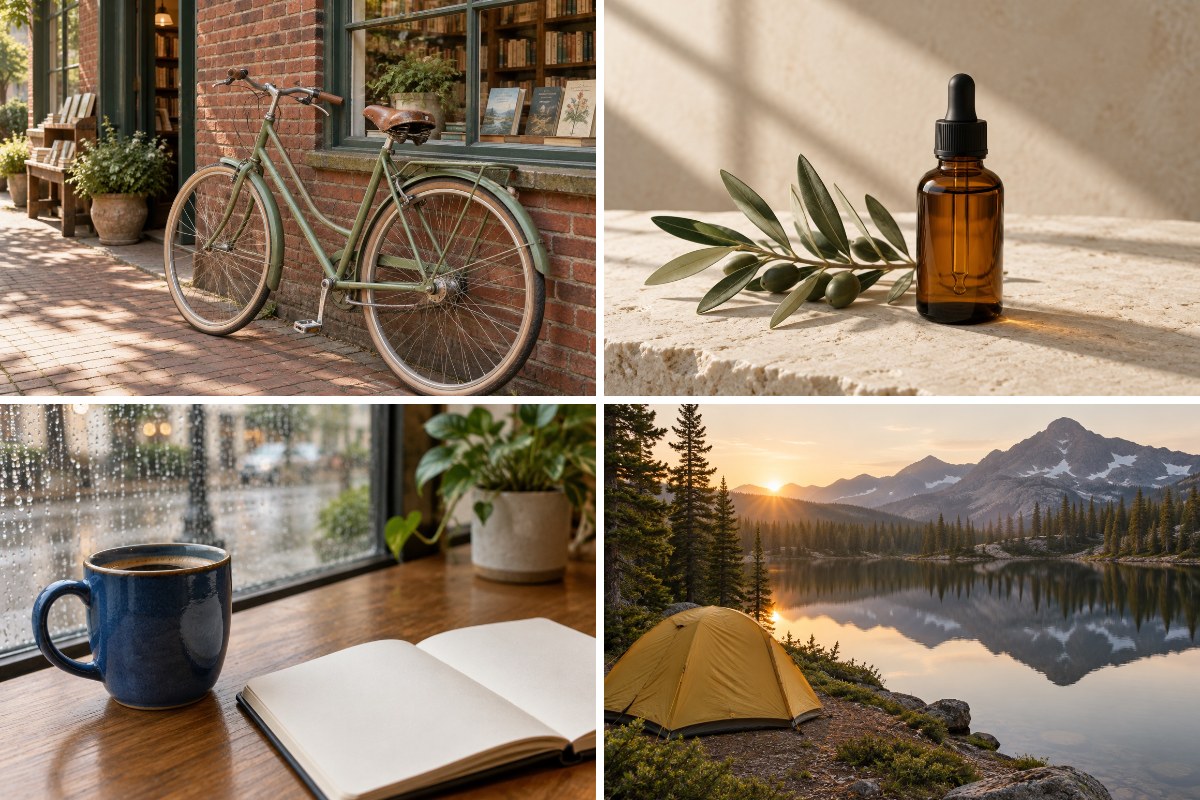
These are four separate GPT Image 2.5 API generations from prompts in the downloadable CSV. They share a light photographic direction, while the subjects and scenes change.
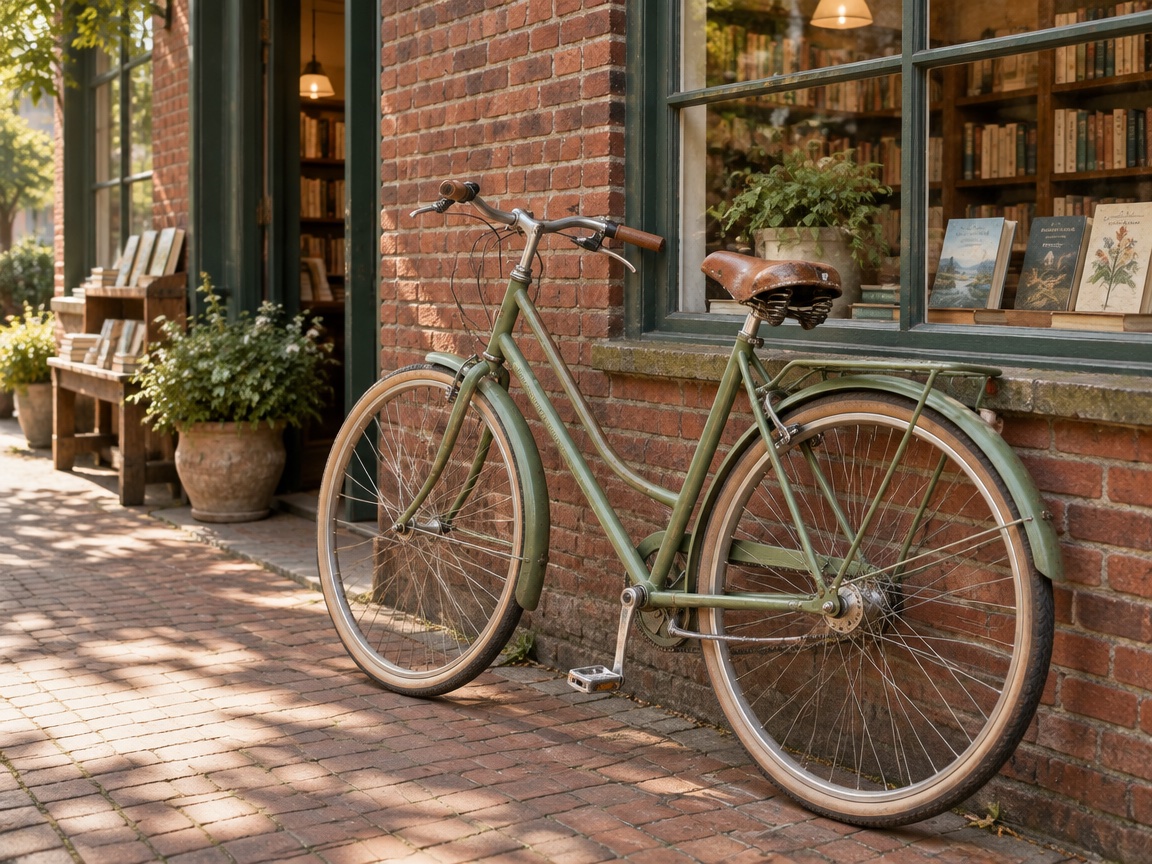
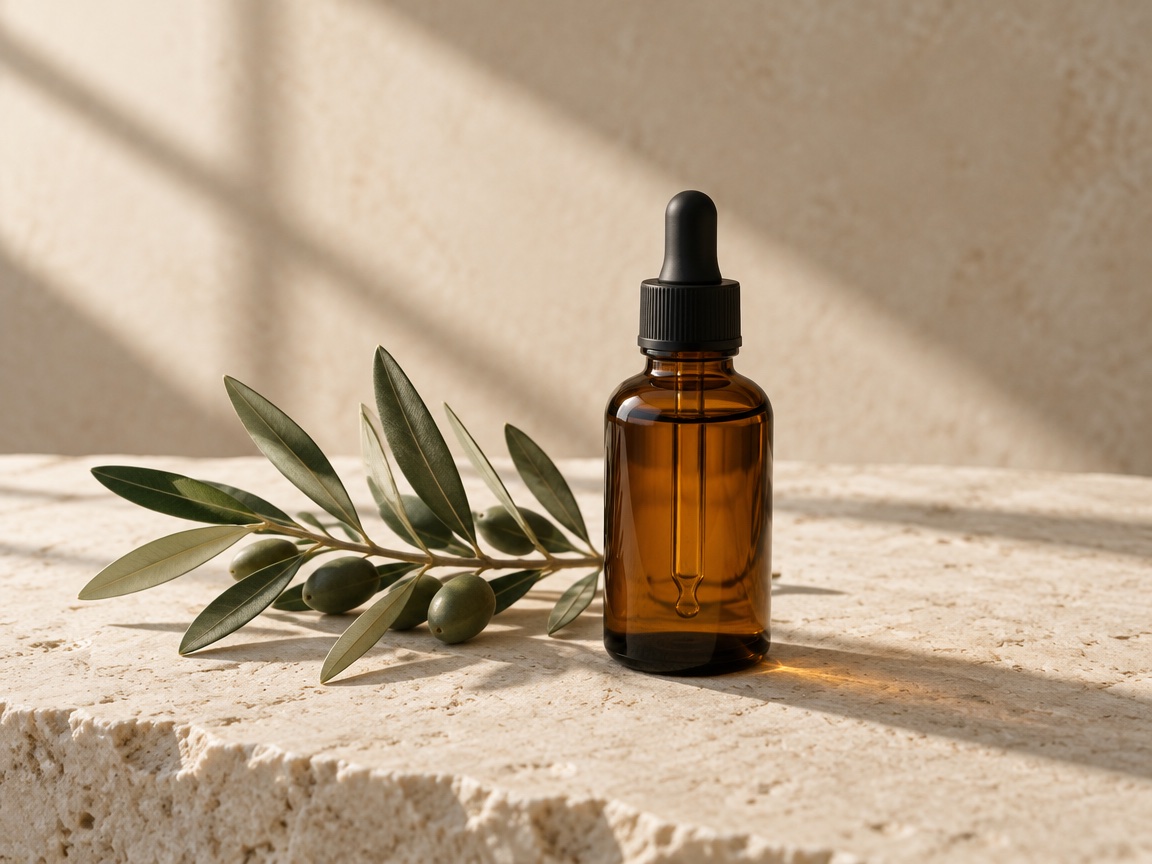
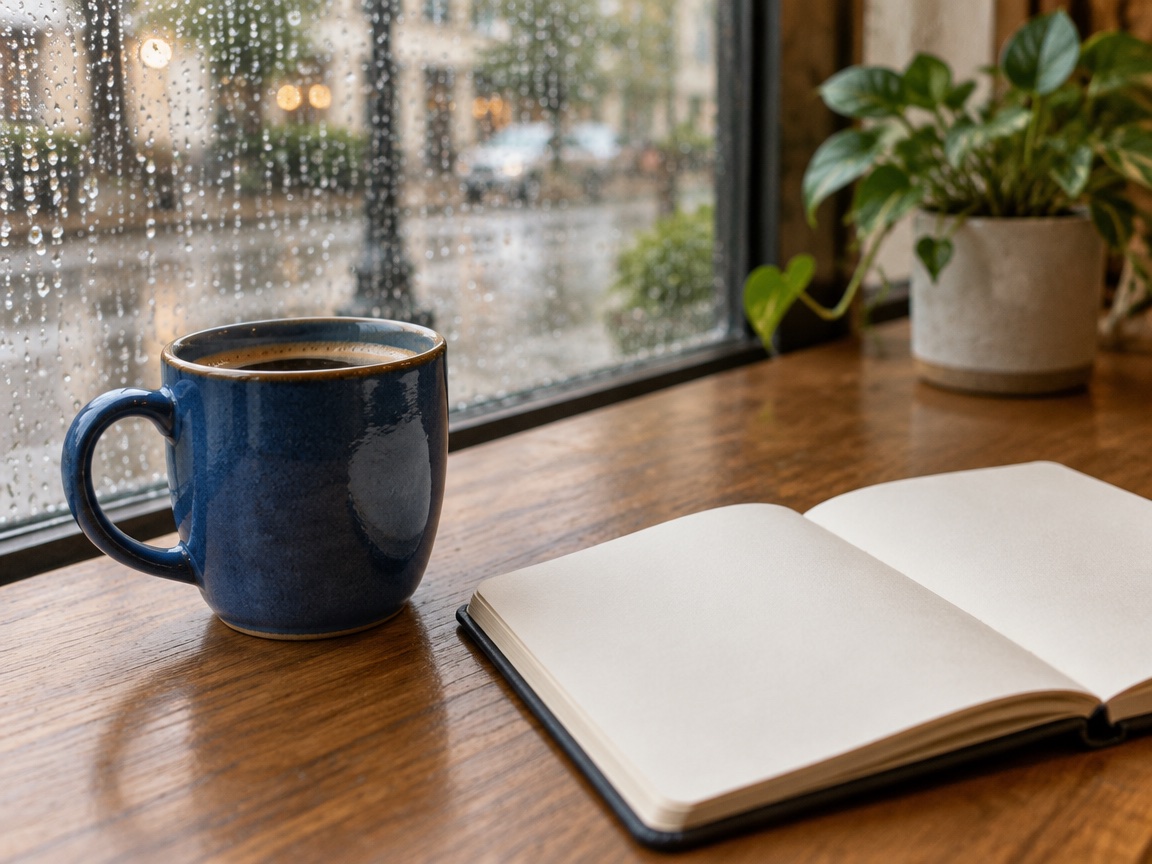
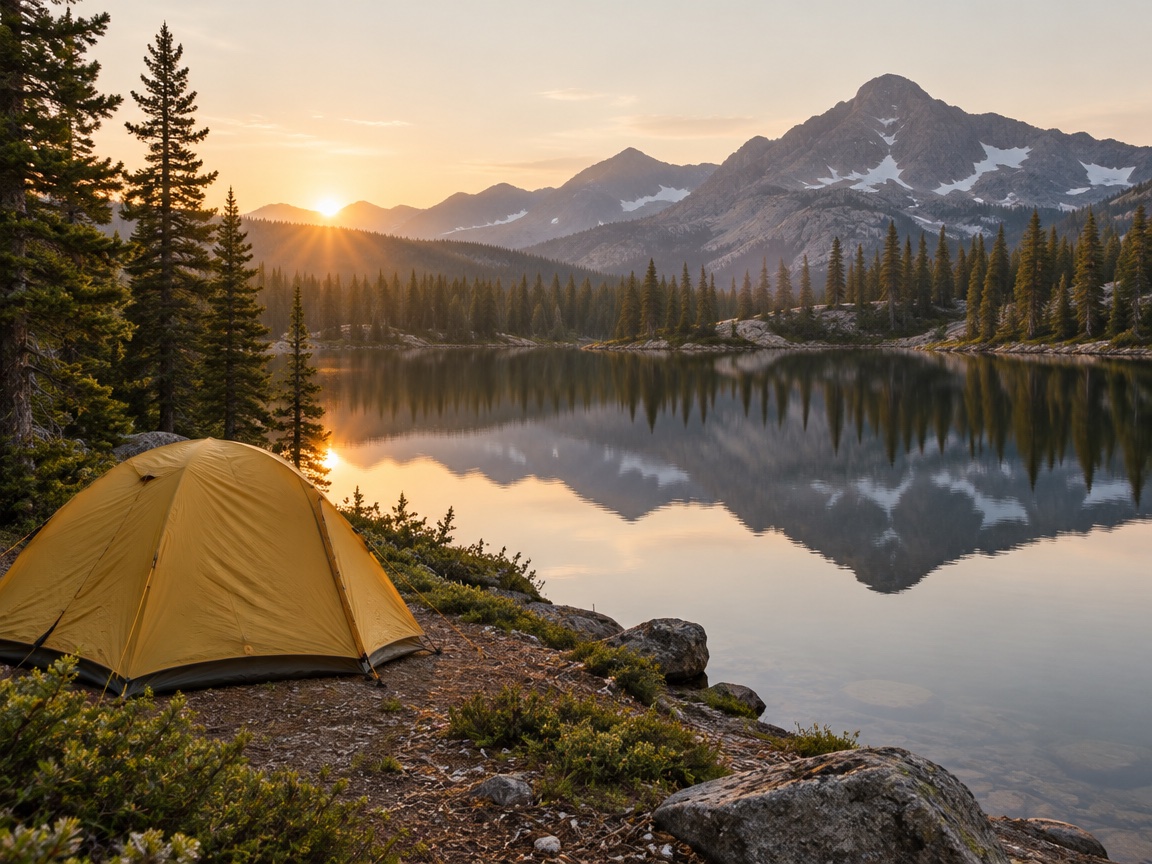
Here are the exact prompts, so you can try the same starting points:
City bicycle
A sage-green city bicycle leaning against a red brick bookstore, morning sunlight, worn leather saddle, no people. Editorial lifestyle photograph, warm neutral colors, soft natural light, realistic materials, understated composition, no text, no logos. Landscape 4:3.
Amber bottle
An amber glass dropper bottle on pale limestone beside one olive branch, a soft diagonal window shadow across the surface. Editorial product photograph, warm neutral colors, soft natural light, realistic materials, understated composition, no text, no logos. Landscape 4:3.
Cafe window
A blue ceramic mug of coffee beside an open blank notebook on a cafe window table, rain droplets on the glass, a small plant in the background. Editorial lifestyle photograph, warm neutral colors, soft natural light, realistic materials, understated composition, no text, no logos. Landscape 4:3.
Lakeside tent
A yellow canvas tent beside a still mountain lake at sunrise, pine trees reflected in the water, no people. Editorial travel photograph, warm neutral colors, soft natural light, realistic materials, understated composition, no text, no logos. Landscape 4:3.
New runs can produce different details, even with the same prompt. Treat these as useful starting points, then review the results against your actual brief.
How much would 100 images cost?
For 100 text-only prompts, one image per row, and short prompts of no more than 512 UTF-8 bytes each, the current GPT Image 2.5 examples are:
| Resolution | Credits per image | 100 images |
|---|---|---|
| 1K | 7 | 700 credits |
| 2K | 12 | 1,200 credits |
| 4K | 16 | 1,600 credits |
Platform rates checked November 17, 2026. These are credit examples, not a dollar quote. Longer prompts and additional reference images can increase the estimate. Other models have different rates.
The workspace calculates the estimate for your actual rows and settings, so use that total before confirming. For the current price of credit packs or a membership, see pricing.
My approach would be to spend a small amount checking the composition, then choose the resolution I need for the final use. If the image will only appear as a small social thumbnail, a higher-resolution file doesn't automatically make the idea better.
Will all 100 images look like they belong together?
They can share a visual direction, but a long list doesn't guarantee consistency on its own. Give every prompt the same short style instruction. For the examples above, that instruction repeats warm neutral colors, soft natural light, realistic materials, and an understated composition.
Change the subject and setting in each row while keeping that instruction stable. “A bicycle outside a bookstore” and “a bottle on limestone” are different briefs; the repeated lighting and material choices help them sit comfortably in the same collection.
If you need the same product in different scenes, use Create Image Variations with a shared reference image and separate prompts. If you need to change a collection of existing photos, use Bulk Edit Photos. Those are useful alternatives to asking text alone to recreate the exact same object every time.
For client work, check labels, packaging, hands, small objects, and important visual details before you use a result. A consistent style is useful; accurate product details still need a review.
What if a few images fail, or I want to stop?
One failed row doesn't mean you should rerun all 100. Review the successful images, then select only the rows you want to try again. A fresh generation can use more credits, so check its estimate first.
While a batch is running, Cancel generation opens a notice before stopping images that have not been submitted. Those images aren't charged. Images already submitted, including those queued or processing at the model provider, finish normally and use credits. Their results stay available to download; failed images are refunded. Use Retry cancellation if the queue-stop check is interrupted.
There is also a difference between a failed generation and a slow image preview. If a finished thumbnail shows a loading indicator or Retry, that action reloads the existing image. It doesn't create a new image or charge generation credits again.
How do I keep the results organized?
Use Download completed (ZIP) to save the finished images together. The export includes a prompts.csv file that connects images with their task and prompt. That's much easier to work with than a downloads folder full of files whose purpose you've forgotten.
Keep the workspace open while the queue runs, and download the results you want to keep. Guest drafts stay in the original browser. Signed-in projects sync across devices, and reference and generated images are available for 30 days.
A few practical questions before you start
Can I generate 100 images from 100 different prompts in one batch?
Yes. In BulkIMG Flow, add 100 prompt rows and set Images per row to 1. Each row becomes a separate image task. The workspace supports up to 200 task rows and processes up to 15 images concurrently; the remaining images wait in the queue.
Do I need an API key, a powerful computer, or coding skills?
No. You can paste prompts or import a CSV in the browser. You can prepare a batch before signing in; you need an account and enough credits when you generate. You do not need to bring your own API key.
Does a ChatGPT subscription pay for images on BulkIMG Flow?
No. BulkIMG Flow has its own credit balance. A ChatGPT subscription does not supply credits for this platform. Check the workspace estimate and the current pricing page before starting a batch.
Can I close the tab while the batch is running?
Keep the workspace open while the queue runs. Already-submitted requests may continue upstream, but the browser manages submitting the remaining images. Local project data and saved task IDs help the same browser recover after a refresh; they are not a guarantee of unattended processing with the tab closed.
Are my projects saved across devices?
Your projects, prompts, and settings sync across devices when you sign in. Guest drafts are saved in the browser and imported automatically when you sign in. Reference and generated images are available for 30 days.
Start with a list you actually want to use
The useful part of batch generation is getting the repetitive work out of the way so you can spend your attention on the images. A good prompt list, one quick sample run, and a checked credit total will get you further than repeatedly typing “make 100 more.”
Have your prompts ready? Bring the list into BulkIMG Flow, set Images per row to 1, and check a few results before running the rest.
Generate images from your prompt list →