Generate AI Images from Multiple Prompts
Paste your prompts or import a CSV or Excel file. Each prompt creates a separate image task.
4 Different Prompts. 4 Separate Images. 1 Batch.
Four independent prompts, four separate results, and a downloadable example ZIP with matching prompts.
| task | Subject | Status | Results |
|---|---|---|---|
| 1 | Flower watering can | 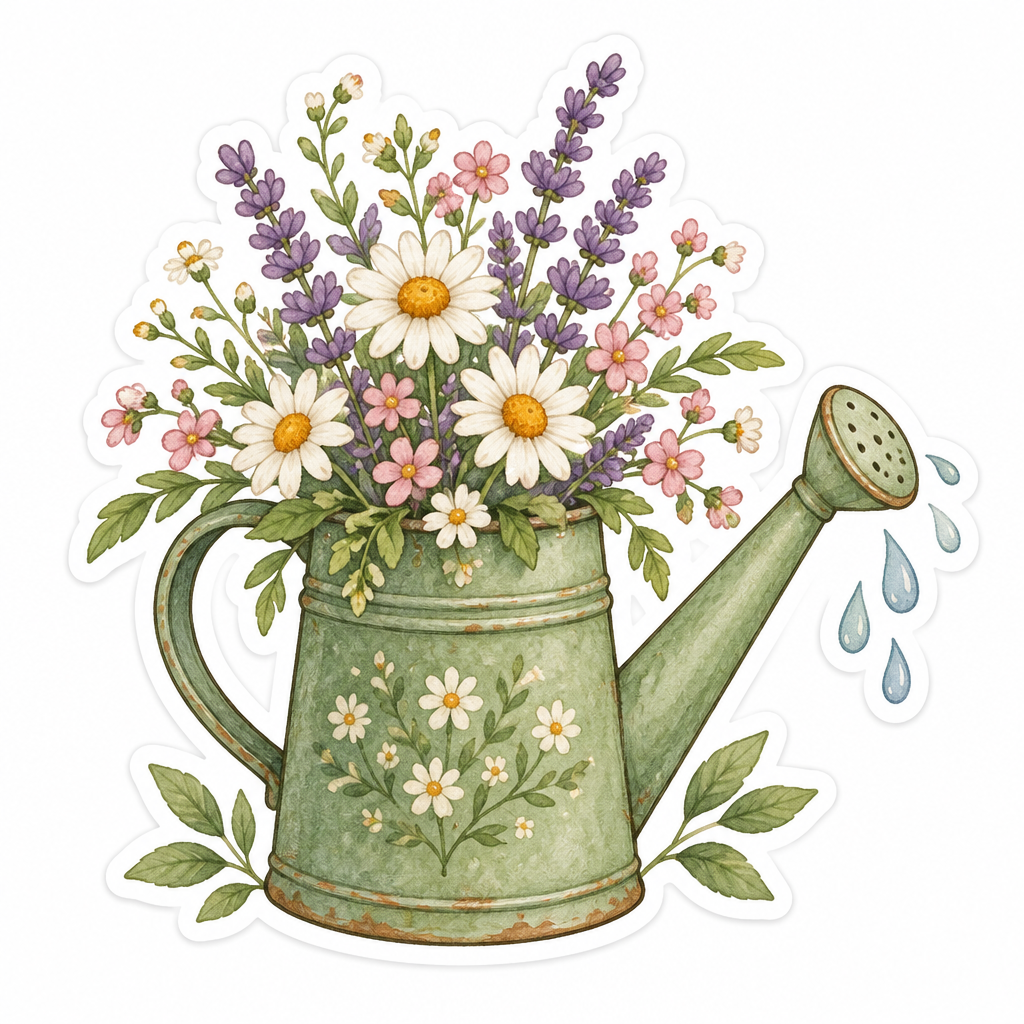 | |
| 2 | Garden greenhouse | 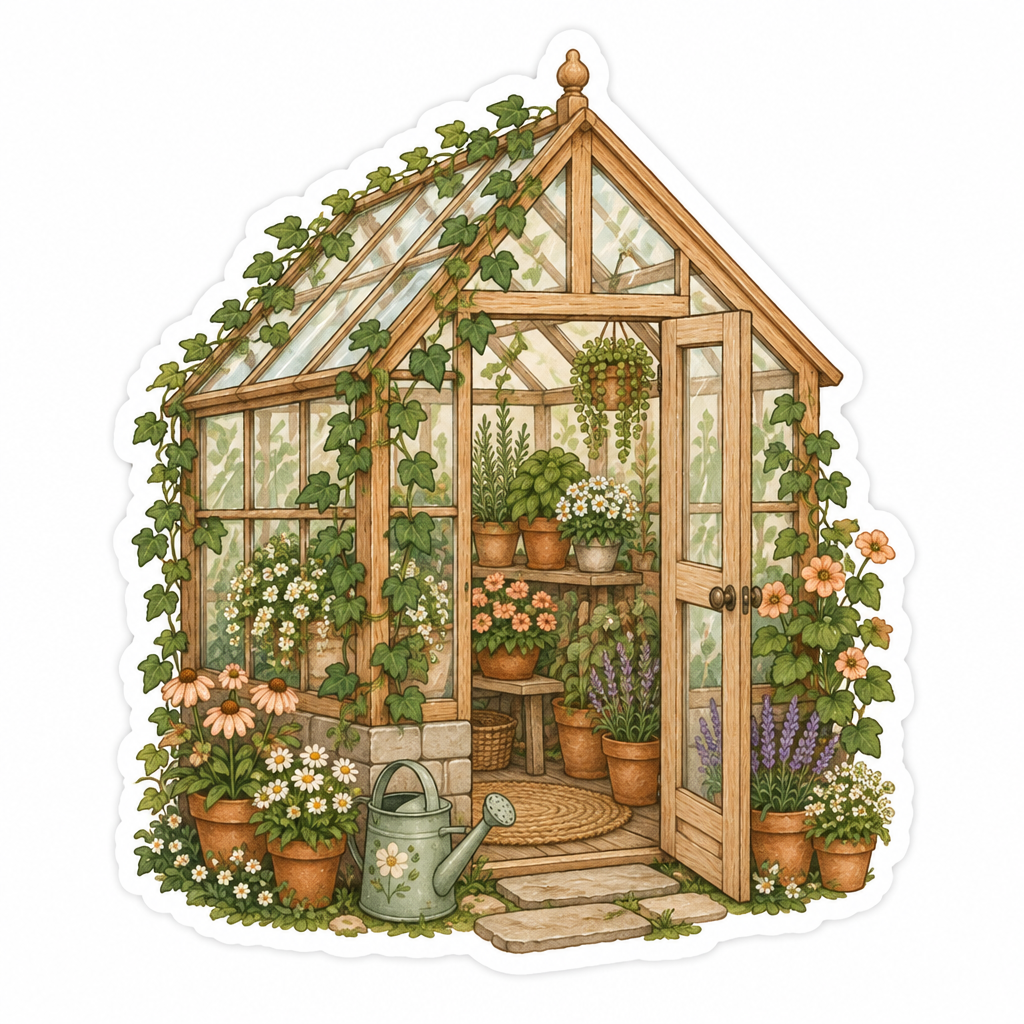 | |
| 3 | Flower-filled rain boots | 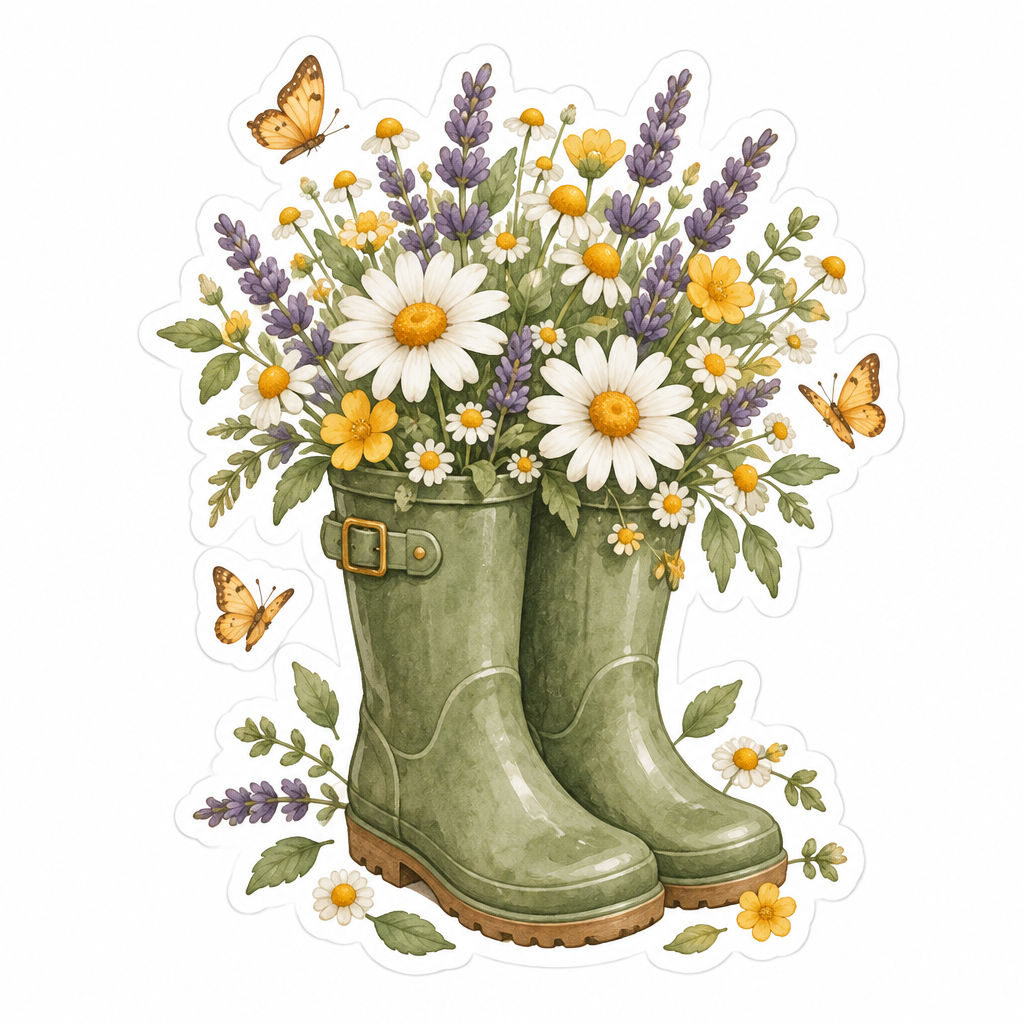 | |
| 4 | Vegetable garden wheelbarrow | 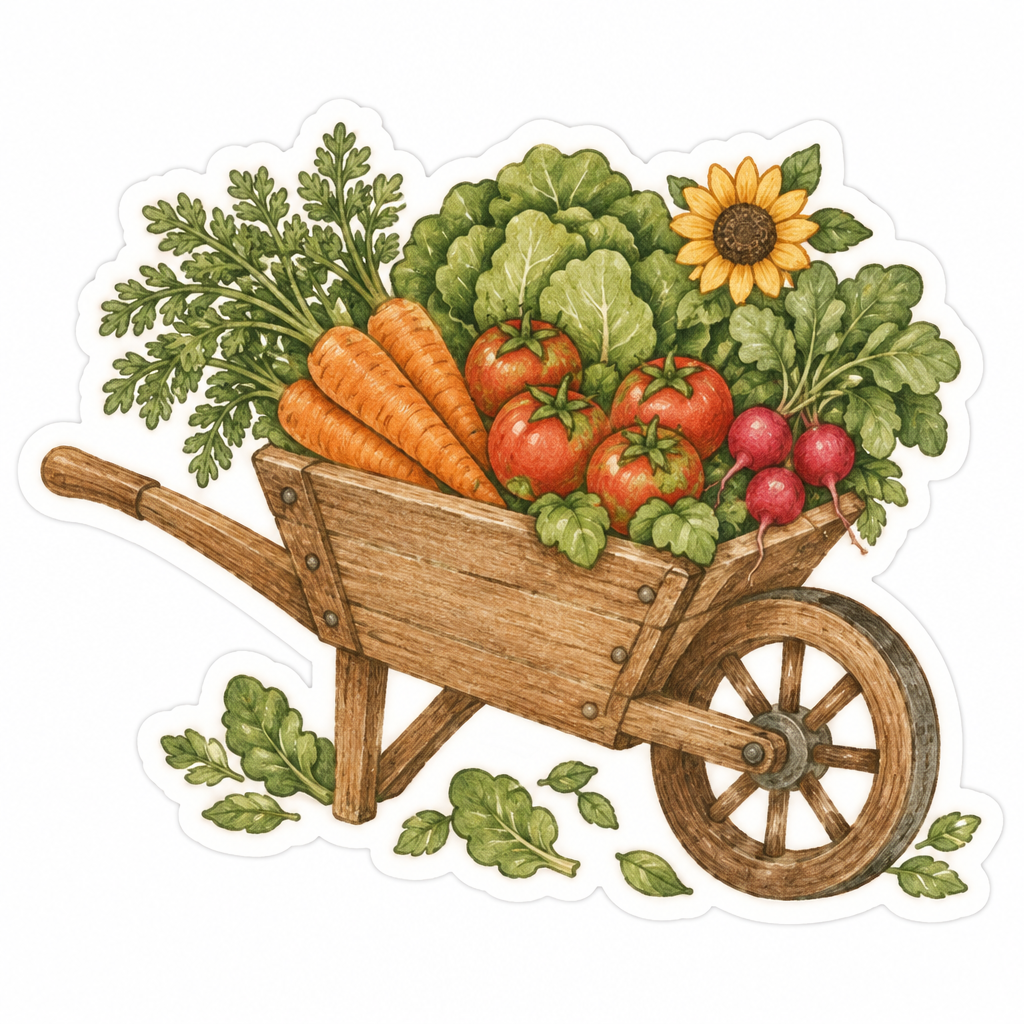 |
How batch text to image works
Add multiple prompts
Paste one prompt per line. For longer lists, upload a CSV or Excel file.
Choose a model and generate
Review tasks in the workspace, choose a model and image size, and confirm the credit cost before generation.
Review and download
Review images as they finish, retry individual tasks when needed, and download completed images together.
Inputs and batch limits
- Batch size
- Up to 200 prompts per batch. Choose up to 10 images per prompt.
- Spreadsheet import
- CSV or Excel (.xlsx), up to 10 MB per file.
- Models and settings
- Choose the model, ratio, resolution, and images per prompt.
Available image models
GPT Image 2 · GPT Image 2.5 · GPT Image 2.6 · Nano Banana 2.1 · Nano Banana Lite · Nano Banana Pro · Seedream 5.0 Pro · Seedream 5.0 Flash · Seedream 5.5 · FLUX.2 Pro · FLUX.3 · Z-Image
- Credits and retries
- Review estimated credits before generation. Credits are returned for failed images. You can retry individual tasks. Pricing
- Image downloads
- Download images in their available format (PNG, JPEG, or WebP) or export completed images and prompts.csv together in a ZIP.
Text-to-image examples
Fantasy RPG item icons
Six different prompts created six separate potions, weapons and rewards in one coordinated game-asset batch.
Coloring book pages
Six different prompts created six separate black-and-white coloring pages for a themed printable collection.
Social media visuals
Six different prompts created six lifestyle photos for social posts, with space for your own captions and graphics.
More prompt-to-image examples
Blog Featured Images
Six article topics created six separate photographic featured images with space for headlines.
Cinematic storyboards
Six shot prompts created six separate storyboard frames to review as one sequence.
Gardening stickers
Six different prompts created six coordinated watercolor gardening sticker images.
Woodland baby shower clipart
Six different animal prompts created six coordinated woodland clipart images.
Educational illustrations
Six learning topics created six separate educational illustrations in one batch.
Fantasy game concept art
Six asset prompts created six separate character, creature and environment concepts.
Frequently asked questions
Can I generate images from different prompts at once?
Yes. Paste a list or import a spreadsheet to create one task for each prompt. This text-to-image tool works without reference photos.
Will I get separate images or one collage?
Save each image separately or download a ZIP with numbered images and their prompts in prompts.csv.
Can I import prompts from a CSV or Excel file?
Yes. Use a prompt column in a CSV or the first worksheet of an .xlsx file. A cell with multiple lines stays together as one prompt.
Can I review or edit my prompts before generating?
Yes. Choose Review Tasks to open your draft in the workspace. You can edit any row and adjust the model, aspect ratio, resolution, or image count before generating.
How many images can I generate in one batch?
Up to 200 prompts per batch. Choose up to 10 images per prompt.
How much does batch AI image generation cost?
Credits depend on the selected model, settings, prompts and image count. Check your estimate before you generate. Creating and reviewing a draft uses no credits.
How do I keep a batch in a similar visual style?
Repeat the style, palette, lighting and composition across prompts and use the same model and settings. The gardening stickers show how. Characters and details may still vary.
What if one image fails or needs a change?
Keep the results you like. In the workspace, edit the prompt for that row and run only that task again. Failed images have their credits returned; a new generation after a prompt change uses credits shown in the estimate.